On This Page
Configure and Test Email
Follow these steps to configure email customers receive during the order management
process.
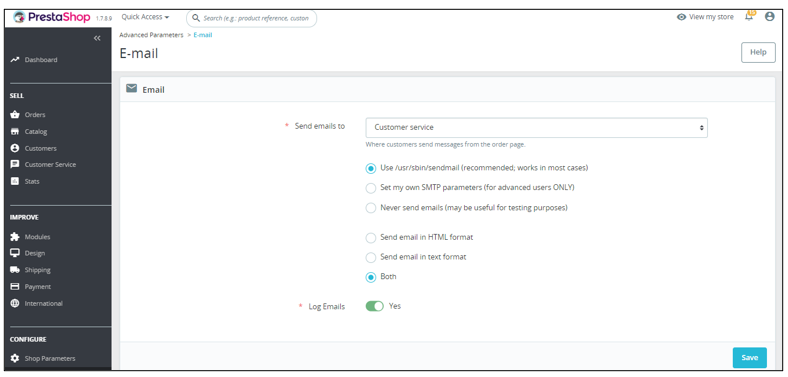
- Open PrestaShop Back Office and selectAdvance Parameters > Emailfrom the Dashboard. The E-mail page displays.

- Select these options from the Email section of the page to configure how email is sent:
ADDITIONAL INFORMATION
- Send emails to: Customer service
- Set my own SMTP parameters (for advanced users ONLY)
- Both HTML and text formats
- Yes for log emails
- Select and specify this information for your SMTP parameters:
ADDITIONAL INFORMATION
- Mail domain name: do not enter information (leave this field empty)
- SMTP server: enter the server domain. For example,smtp.gmail.com.
- SMTP username: enter the email address from which emails are sent. For example, .
- SMTP password: enter the password for the email address provided above.
- Encryption: select TLS
- Port: enter 587

- ClickSaveto save the configuration.
- Test your email configuration by entering an email address to which you want to send the test message, and clickSend a test email.
