On This Page
Batch Upload Keys
A
batch upload key
is P12 certificate that enables you to securely send batch
files to Cybersource
. This key is required if you are using Offline
Transaction File Submission, also known as programmatic batch upload. For more information about Offline Transaction File Submissions and how to use
this key to enable it, see the
Offline Transaction File
Submission Implementation Guide
.This section describes how to create a new batch upload key or submit an existing P12
certificate to use as your batch upload key.
Create a Batch Upload Key
Follow these steps to create a batch upload key:
- Log in to theBusiness Center:
ADDITIONAL INFORMATION
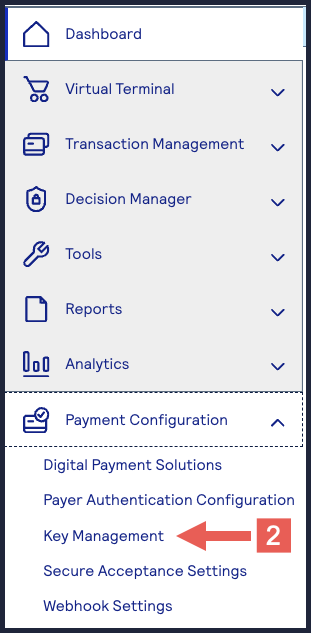
- On the left navigation panel, choose
 Payment Configuration > Key Management.
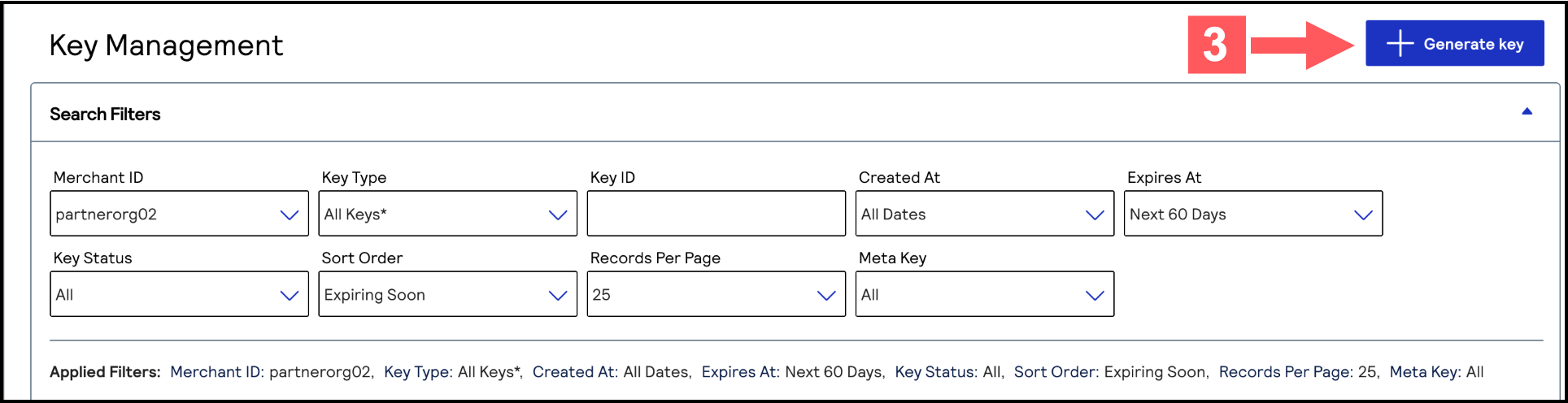
- Click+ Generate keyon the Key Management page.
- Under Batch Upload, chooseBatch Upload, and then clickGenerate key.If you are using aportfolioaccount, the Key options window appears, giving you the choice to create a meta key.For more information about how to create a meta key, see .

- Choose from one of these two options:
- If you are a creating a new Batch Upload key, clickDownload key
 .

- If you are submitting your own certificate, enter your public PEM-formatted certificate in the text box, then clickDownload key
.

- Create a password for the certificate by entering one into theNew PasswordandConfirm Passwordfields. ClickGenerate key.
 The.p12file downloads to your desktop.If prompted by your system, approve the location to which the key downloads.
AFTER COMPLETING THE TASK
To create or submit another key, click
Generate another key
. To
view all of your created keys, go to the Key Management page.IMPORTANT
Securely store the
.p12
file and password in your system. Do not share
the key credentials with anyone outside of your administrative team or
organization.