On This Page
Afterpay and Clearpay Developer Guide
This section describes how to use this guide and where to find further information.
- Audience and Purpose
- This guide is written for application developers who want to integrate Afterpay and Clearpay into their order management system.
- Conventions
- The following special statement is used in this document:AnImportantstatement contains information essential to successfully completing a task or learning a concept.
- Related Documentation
- Refer to the Support Center for complete technical documentation:
- Customer Support
- For support information about any service, visit the Support Center:
Recent Revisions to This Document
24.02
This update contains only editorial changes and no technical updates.
24.01
Updated the example response for creating a session. See Simple Order API Example: Create Session with XML.
23.01
Added the transaction workflow and graphic. See Afterpay and Clearpay Workflow.
Added the Create a Session section. See Create a Session.
Added an Authorization example that includes optional line items. See Example: Authorizing a Payment with XML.
Updated the Sales section to support the new Session service. See Sales.
21.01
Initial release.
VISA Platform Connect: Specifications and Conditions for Resellers/Partners
The following are specifications and conditions that apply to a Reseller/Partner
enabling its merchants through
Cybersource for Visa Platform Connect
(“VPC”) processing
. Failure to meet any of the specifications and
conditions below is subject to the liability provisions and indemnification
obligations under Reseller/Partner’s contract with Visa/Cybersource.- Before boarding merchants for payment processing on a VPC acquirer’s connection, Reseller/Partner and the VPC acquirer must have a contract or other legal agreement that permits Reseller/Partner to enable its merchants to process payments with the acquirer through the dedicated VPC connection and/or traditional connection with such VPC acquirer.
- Reseller/Partner is responsible for boarding and enabling its merchants in accordance with the terms of the contract or other legal agreement with the relevant VPC acquirer.
- Reseller/Partner acknowledges and agrees that all considerations and fees associated with chargebacks, interchange downgrades, settlement issues, funding delays, and other processing related activities are strictly between Reseller and the relevant VPC acquirer.
- Reseller/Partner acknowledges and agrees that the relevant VPC acquirer is responsible for payment processing issues, including but not limited to, transaction declines by network/issuer, decline rates, and interchange qualification, as may be agreed to or outlined in the contract or other legal agreement between Reseller/Partner and such VPC acquirer.
DISCLAIMER: NEITHER VISA NOR CYBERSOURCE WILL BE RESPONSIBLE OR LIABLE FOR ANY ERRORS
OR OMISSIONS BY THE VISA PLATFORM CONNECT ACQUIRER IN PROCESSING TRANSACTIONS.
NEITHER VISA NOR CYBERSOURCE WILL BE RESPONSIBLE OR LIABLE FOR RESELLER/PARTNER
BOARDING MERCHANTS OR ENABLING MERCHANT PROCESSING IN VIOLATION OF THE TERMS AND
CONDITIONS IMPOSED BY THE RELEVANT VISA PLATFORM CONNECT ACQUIRER.
Introduction to Afterpay and Clearpay
Afterpay and Clearpay are Buy Now Pay Later (BNPL) payment methods you can offer your
customers through
Cybersource
. The pay later service enables online
customers to purchase a product immediately and pay for it later with four equal
repayments. The repayments are interest-free, as long as the customer pays on time.Supported Services
These are the API services you must integrate with to process a transaction using
Afterpay and Clearpay:
- Options
- Session
- Authorization
- Capture
- Sale
- Refund
- Authorization-reversal
- Check status
Requirements
Your merchant account must be configured to process Afterpay and Clearpay payments.
Contact your
Cybersource
account manager for further details.Supported Countries and Currencies
Afterpay is available in Australia, Canada, New Zealand, and the United States.
Clearpay is available in the United Kingdom. This table shows the country codes and
currency codes supported by Afterpay and Clearpay.
Country | Country Code | Currency | Currency Code |
|---|---|---|---|
Australia | AU | Australian dollar | AUD |
Canada | CA | Canadian dollar | CAN |
New Zealand | NZ | New Zealand dollar | NZD |
United Kingdom | GB | United Kingdom pound | GBP |
United States | US | United States dollar | USD |
Afterpay and Clearpay Workflow
This workflow describes the sequence of events that comprise a successful Afterpay
and Clearpay payment.
Figure:
Workflow
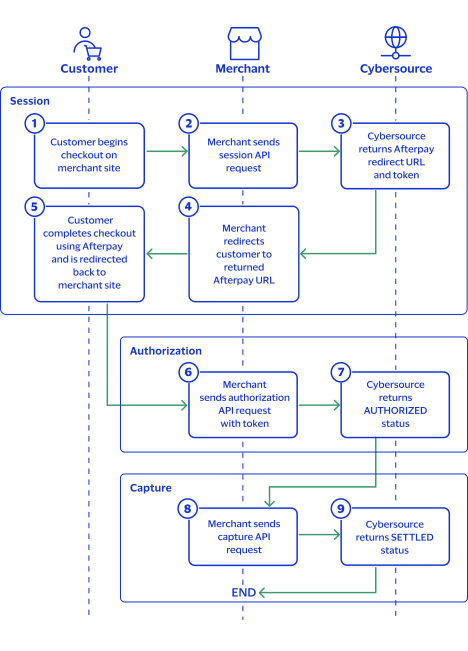
- The customer begins to checkout on the merchant site.
- The merchant sends a session API request. See Create a Session.
- Cybersourcereturns a redirect Afterpay or Clearpay URL to the merchant and a token.
- The merchant redirects the customer to the unique Afterpay or Clearpay URL for the customer to complete the payment.
- The customer logs into their Afterpay or Clearpay account and completes the checkout. The customer is then redirected back to the merchant site.
- The merchant sends an authorization API request with the token from the session response. See Authorizations.
- Cybersourcereturns anAUTHORIZEDresponse.
- The merchant sends a capture API request to complete the payment. See Captures.
- Cybersourcereturns aSETTLEDresponse.
Afterpay and Clearpay Services
The following services are available:
Options
Use the options service to request the minimum amount, maximum amount, and currency for
the day from your Afterpay and Clearpay account.
Endpoints
Set the
apOptionsService_run
field to
true
, and send the request to one of these
endpoints:Production:
https://ics2ws.ic3.com/commerce/1.x/transactionProcessor
Test:
https://ics2wstest.ic3.com/commerce/1.x/transactionProcessor
Required Fields for Options
Example: Options Service with XML
Request
<requestMessage xmlns="urn:schemas-cybersource-com:transaction-data-1.213">
   <merchantID>test_merchant</merchantID>
   <merchantReferenceCode>refnum-1234</merchantReferenceCode>
   <apPaymentType>afp</apPaymentType>
   <apOptionsService run="true">
      <limit>3</limit>
      <offset>2</offset>
   </apOptionsService>
 </requestMessage>
Response to a Successful Request
<replyMessage xmlns:c="urn:schemas-cybersource-com:transaction-data-1.213">
   <merchantReferenceCode>123456</merchantReferenceCode>
   <requestID>6246005374346859304083</requestID>
   <decision>ACCEPT</decision>
   <reasonCode>100</reasonCode>
   <apOptionsReply>
      <reasonCode>100</reasonCode>
      <responseCode>00000</responseCode>
      <offset>0</offset>
      <count>6</count>
      <totalCount>6</totalCount>
      <option data="0">
         <id>6</id>
         <name>1000.00</name>
      </option>
      <option data="1">
         <id>5</id>
         <name>Maximum Amount</name>
      </option>
      <option data="2">
         <id>4</id>
         <name>1.00</name>
      </option>
      <option data="3">
         <id>3</id>
         <name>Minimum Amount</name>
      </option>
      <option data="4">
         <id>2</id>
         <name>USD</name>
      </option>
      <option data="5">
         <id>1</id>
         <name>Currency</name>
      </option>
   </apOptionsReply>
</replyMessage>
Create a Session
Creating a session is mandatory for processing a payment. To create a session, you must
include shipping fields in your request. The shipping field values are included in the
invoice Afterpay and Clearpay send to the customer.
A successful session response includes an Afterpay or Clearpay redirect URL and a token.
Send the customer to the redirect URL to approve the payment using their Afterpay or
Clearpay account. Use the token in the authorization request to link the authorization
to the session.
Endpoints
Set the
apSessionsService_run
field to
true
, and send the request to one of these
endpoints:Production:
https://ics2ws.ic3.com/commerce/1.x/transactionProcessor
Test:
https://ics2wstest.ic3.com/commerce/1.x/transactionProcessor
Response Status
The session service responds with this status as the
apSessionReply_status
field value:- PENDING: The Afterpay or Clearpay redirect URL is generated. Redirect the customer to the Afterpay or Clearpay URL.
The session service also responds with a reason code as the
apSessionReply_reasonCode
field value. For more information about reason
codes, see the Reason Codes for the Simple Order
API.Line Items
Afterpay and Clearpay use optional line item fields when you send a session
request.
Line items are used to include information about the goods that your customers purchase,
such as product name, quantity, and price.
Line items are represented as the
item_#_
fields,
starting with item_0_
, and increasing in numerical
order.These fields are required for each line item that you use:
Including Line Items
This example shows three valid line items.
<item id="0">
	<unitPrice>20</unitPrice>
	<quantity>1</quantity>
	<productCode>98765</productCode>
	<productName>shirt</productName>
	<productSKU>testJ</productSKU>
	<totalAmount>20</totalAmount>
</item>
<item id="1">
	<unitPrice>10</unitPrice>
	<quantity>3</quantity>
	<productCode>65432</productCode>
	<productName>pants</productName>
	<productSKU>testK</productSKU>
	<totalAmount>30</totalAmount>
</item>
<item id="2">
	<unitPrice>5</unitPrice>
	<quantity>5</quantity>
	<productCode>12345</productCode>
	<productName>socks</productName>
	<productSKU>testX</productSKU>
	<totalAmount>25</totalAmount>
</item>
Creating a Session
Follow these steps to successfully complete a session request.
- Send aPOSTrequest to thehttps://ics2ws.ic3.com/commerce/1.x/transactionProcessorendpoint and include these required fields:
ADDITIONAL INFORMATION
- Set toafp.
- Set totrue.
- Set toN.
- Include any of these optional fields in the request:
ADDITIONAL INFORMATION
- apSessionService_paymentMethod_name
- Set toN.
- billTo_street2
- Replace the#character with a sequential number starting from0.
- Replace the#character with a sequential number starting from0.
- Replace the#character with a sequential number starting from0.
- Replace the#character with a sequential number starting from0.
- Replace the#character with a sequential number starting from0.
- Replace the#character with a sequential number starting from0.
- When this field is included in the request, thepurchaseTotals_grandTotalAmountfield is no longer required.
- Replace the#character with a sequential number starting from0.
- Store the value in theprocessorTokenfield from the session response. You must include this value in the follow-on authorization request.
ADDITIONAL INFORMATION
<processorToken>5f97d636-85d1-486b-a1de-96111938ec61</processorToken> - Redirect the customer to the returned Afterpay or Clearpay URL contained in themerchantURLresponse field.
ADDITIONAL INFORMATION
<merchantURL>https://portal.afterpay.com/us/checkout/?token=002.suuh2tq1gfvthg0180il0928fjkhg1p4ufg4savhihcvm9uj</merchantURL> - When the customer completes the checkout using their Afterpay or Clearpay credentials, Afterpay or Clearpay redirects the customer to the success URL specified in the session request. You can now send an authorization request.
- When you send the authorization request, set theapAuthService_preapprovalTokenfield to theprocessorTokenfield value you stored from the session response.
Simple Order API Example: Create Session with
XML
Simple Order API
Example: Create Session with
XMLRequest
<requestMessage xmlns="urn:schemas-cybersource-com:transaction-data-1.213"> <merchantID>test_merchant</merchantID> <merchantReferenceCode>refnum-1234</merchantReferenceCode> <billTo> <firstName>John</firstName> <lastName>Smith</lastName> <street1>Happy</street1> <city>Austin</city> <state>TX</state> <postalCode>78757</postalCode> <country>US</country> <email></email> </billTo> <shipTo> <firstName>John</firstName> <lastName>Smith</lastName> <street1>Happy</street1> <city>Austin</city> <state>TX</state> <postalCode>78757</postalCode> <country>US</country> </shipTo> <purchaseTotals> <currency>USD</currency> <grandTotalAmount>600</grandTotalAmount> </purchaseTotals> <apPaymentType>AFP</apPaymentType> <apSessionsService run="true"> <cancelURL>https://www.test0.com</cancelURL> <successURL>https://www.test1.com</successURL> </apSessionsService> </requestMessage>
Response to a Successful Request
<replyMessage xmlns:c="urn:schemas-cybersource-com:transaction-data-1.213">
    <merchantReferenceCode>refnum-1234</merchantReferenceCode>
    <requestID>6951825944986489403007</requestID>
    <decision>ACCEPT</decision>
    <reasonCode>100</reasonCode>
    <requestToken>AxjnrwSTeNv3IJzf8zZ/AAUZYjWmrWbQcsYsOgojmhl/H/SCHUwGX0MmkmXoxZaH/pN42/cgnN/zNn8A2VlF</requestToken>
    <purchaseTotals>
	<currency>USD</currency>
    </purchaseTotals>
    <apSessionsReply>
	<reasonCode>100</reasonCode>
	<responseCode>00000</responseCode>
	<merchantURL>https://portal.sandbox.afterpay.com/us/checkout/?token=002.suuh2tq1gfvthg0180il0928fjkhg1p4ufg4savhihcvm9uj</merchantURL>
	<processorToken>519ff272-d850-4c81-ab65-674f670063c7</processorToken>
	<amount>600.00</amount>
	<reconciliationID>XFZ55MP91ECP</reconciliationID>
	<status>COMPLETED</status>
	<dateTime>2023-09-20T04:03:14Z</dateTime>
    </apSessionsReply>
</replyMessage>
Simple Order API Example: Create Session Using
Line Items with XML
Simple Order API
Example: Create Session Using
Line Items with XMLRequest with Optional Line Items
<requestMessage xmlns="urn:schemas-cybersource-com:transaction-data-1.213"> <merchantID>test_merchant</merchantID> <merchantReferenceCode>refnum-1234</merchantReferenceCode> <billTo> <firstName>John</firstName> <lastName>Smith</lastName> <street1>Peachtree St</street1> <city>Atlanta</city> <state>GA</state> <postalCode>33019</postalCode> <country>US</country> <email></email> </billTo> <shipTo> <firstName>John</firstName> <lastName>Smith</lastName> <street1>Peachtree St</street1> <city>Atlanta</city> <state>GA</state> <postalCode>30319</postalCode> <country>US</country> </shipTo> <item id="0"> <unitPrice>1</unitPrice> <quantity>10</quantity> <productCode>4564</productCode> <productName>TV</productName> <productSKU>testI</productSKU> <totalAmount>10</totalAmount> </item> <item id="1"> <unitPrice>15</unitPrice> <quantity>1</quantity> <productCode>65432</productCode> <productName>TV</productName> <productSKU>testJ</productSKU> <totalAmount>15</totalAmount> </item> <purchaseTotals> <currency>USD</currency> </purchaseTotals> <apPaymentType>AFP</apPaymentType> <apSessionsService run="true"> <cancelURL>https://www.test.com</cancelURL> <successURL>https://www.test1.com</successURL> <paymentMethod_name>afp</paymentMethod_name> </apSessionsService> </requestMessage>
Response with Optional Line Items
<replyMessage xmlns:c="urn:schemas-cybersource-com:transaction-data-1.213">
	<merchantReferenceCode>refnum-1234</merchantReferenceCode>
	<requestID>6977376246486503703007</requestID>
	<decision>ACCEPT</decision>
	<reasonCode>100</reasonCode>
	<requestToken>AxjnrwSTej6MCHSsbsHfAAUZYiy6ladJo2qFOEnkFtpem2kDJxDNyGTSTL0YwW2Lkm9H0YEOlY3YO+AAES2i</requestToken>
	<purchaseTotals>
		<currency>USD</currency>
	</purchaseTotals>
	<apSessionsReply>
		<reasonCode>100</reasonCode>
		<responseCode>00001</responseCode>
		<merchantURL>https://portal.sandbox.afterpay.com/us/checkout/?token=002.kfl0qoc9q5tarv41p34s1dvbrk62iflv382j1sd0ot7o5s82</merchantURL>
		<processorToken>0d97aa1b-a9dd-4e9c-b60c-b1157470d034</processorToken>
		<amount>25.00</amount>
		<reconciliationID>XEKTVNIQZPSB</reconciliationID>
		<status>PENDING</status>
		<dateTime>2023-10-19T17:47:05Z</dateTime>
	</apSessionsReply>
</replyMessage>
Authorizations
Use the authorization service to process a payment request to Afterpay or Clearpay. You
must include the token received from the session response in the authorization request
to receive a successful response.
Endpoints
Set the
apAuthService_run
field to
true
, and send the request to one of these
endpoints:Production:
https://ics2ws.ic3.com/commerce/1.x/transactionProcessor
Test:
https://ics2wstest.ic3.com/commerce/1.x/transactionProcessor
Response Status
An authorization can have one of the following statuses:
- AUTHORIZED: the payment is authorized.
- PENDING: the authorization request is accepted, but the payment is not authorized. To authorize the payment, complete the authorization using the payment redirection URL that you received in the authorization response.
- FAILED: the authorization request fails when there are invalid or missing fields.
Required Fields for Authorizing a Payment
Include these required fields in the authorization request.
- Set to theprocessorTokenfrom the session response.
- Set totrue.
- Set toafp.
Optional Fields for Authorizing a Payment
Choose from these optional fields to include in the authorization request.
- apAuthService_reconciliationID
- Set to thereconciliationIDreturned in the session response.
- Replace the#character with a sequential number starting from0.
- Replace the#character with a sequential number starting from0.
- Replace the#character with a sequential number starting from0.
- Replace the#character with a sequential number starting from0.
- Replace the#character with a sequential number starting from0.
- If this field is present, thepurchaseTotals_grandTotalAmountfield becomes optional.
- Replace the#character with a sequential number starting from0.
- Replace the#character with a sequential number starting from0.
- Set toinline.
Example: Authorizing a Payment with XML
These examples show successful authorization requests.
Request
<requestMessage xmlns="urn:schemas-cybersource-com:transaction-data-1.213"> <merchantID>test_merchant</merchantID> <merchantReferenceCode>refnum-1234</merchantReferenceCode> <billTo> <firstName>John</firstName> <lastName>Smith</lastName> <street1>123 Happy St</street1> <city>Austin</city> <state>TX</state> <postalCode>78757</postalCode> <country>US</country> <email></email> </billTo> <shipTo> <firstName>John</firstName> <lastName>Smith</lastName> <street1>123 Happy</street1> <city>Austin</city> <state>TX</state> <postalCode>78757</postalCode> <country>US</country> </shipTo> <purchaseTotals> <currency>USD</currency> <grandTotalAmount>75.00</grandTotalAmount> </purchaseTotals> <apPaymentType>afp</apPaymentType> <apAuthService run="true"> <cancelURL>https://www.test.com</cancelURL> <successURL>https://www.test.com</successURL> <preapprovalToken>519ff272-d850-4c81-ab65-674f670063c7</preapprovalToken> </apAuthService> </requestMessage>
Response to a Successful Request
<replyMessage xmlns:c="urn:schemas-cybersource-com:transaction-data-1.213">
	<merchantReferenceCode>refnum-1234</merchantReferenceCode>
	<requestID>6246274241256683803069</requestID>
	<decision>ACCEPT</decision>
	<reasonCode>100</reasonCode>
	<requestToken>AxjnrwSTeaOOe5Ed6nFKAAUZYjWmrWdFqOaFmiojml/qNzSBvUwzPhk0ky9GMFti5JvNHHPciO9TilAA4hjb</requestToken>
	<purchaseTotals>
		<currency>USD</currency>
	</purchaseTotals>
	<apAuthReply>
		<reasonCode>100</reasonCode>
		<status>AUTHORIZED</status>
		<processorResponse>00003</processorResponse>
		<amount>75.00</amount>
		<dateTime>2023-10-06T19:33:21Z</dateTime>
		<paymentStatus>authorized</paymentStatus>
		<responseCode>00003</responseCode>
		<reconciliationID>XFZ55NET9PYQ</reconciliationID>
		<processorTransactionID>519ff272-d850-4c81-ab65-674f670063c7</processorTransactionID>
	</apAuthReply>
</replyMessage>
Request with Optional Line Items
<requestMessage xmlns="urn:schemas-cybersource-com:transaction-data-1.213"> <merchantID>test_merchant</merchantID> <merchantReferenceCode>refnum-1234</merchantReferenceCode> <billTo> <firstName>John</firstName> <lastName>Smith</lastName> <street1>Peachtree St</street1> <city>Atlanta</city> <state>GA</state> <postalCode>33019</postalCode> <country>US</country> <email></email> </billTo> <shipTo> <firstName>John</firstName> <lastName>Smith</lastName> <street1>Peachtree St</street1> <city>Atlanta</city> <state>GA</state> <postalCode>33019</postalCode> <country>US</country> </shipTo> <item id="0"> <unitPrice>1</unitPrice> <quantity>10</quantity> <productCode>4564</productCode> <productName>TV</productName> <productSKU>testI</productSKU> <totalAmount>10</totalAmount> </item> <item id="1"> <unitPrice>15</unitPrice> <quantity>1</quantity> <productCode>65432</productCode> <productName>TV</productName> <productSKU>testJ</productSKU> <totalAmount>15</totalAmount> </item> <purchaseTotals> <currency>USD</currency> </purchaseTotals> <apPaymentType>AFP</apPaymentType> <apAuthService run="true"> <cancelURL>https://www.test.com</cancelURL> <successURL>https://www.test1.com</successURL> <preapprovalToken>0d97aa1b-a9dd-4e9c-b60c-b1157470d034</preapprovalToken> </apAuthService> </requestMessage>
Response with Optional Line Items
<replyMessage xmlns:c="urn:schemas-cybersource-com:transaction-data-1.213">
	<merchantReferenceCode>refnum-1234</merchantReferenceCode>
	<requestID>6977375233876065503009</requestID>
	<decision>ACCEPT</decision>
	<reasonCode>100</reasonCode>
	<requestToken>AxjnrwSTej6Ib33u98chAAUZYiy69adJpUaUiInkFtpV8ukDJxDNyGTSTL0YwW2Lkm9H0Q3vvd745CAA6Qe8</requestToken>
	<purchaseTotals>
		<currency>USD</currency>
	</purchaseTotals>
	<apAuthReply>
		<reasonCode>100</reasonCode>
		<status>AUTHORIZED</status>
		<processorResponse>00003</processorResponse>
		<amount>25.00</amount>
		<dateTime>2023-10-19T17:45:24Z</dateTime>
		<paymentStatus>authorized</paymentStatus>
		<responseCode>00003</responseCode>
		<reconciliationID>XEKWVNIRQRHD</reconciliationID>
		<processorTransactionID>0d97aa1b-a9dd-4e9c-b60c-b1157470d034</processorTransactionID>
	</apAuthReply>
</replyMessage>
Captures
Use this service to capture an authorized payment. Partial captures and full-amount
captures are both supported.
Endpoints
Set the
apCaptureService_run
field to
true
, and send the request to one of these
endpoints:Production:
https://ics2ws.ic3.com/commerce/1.x/transactionProcessor
Test:
https://ics2wstest.ic3.com/commerce/1.x/transactionProcessor
Response Status
The capture service responds with one of these statuses as the
apCaptureReply_status
response field value:- FAILED: The capture request failed.
- PENDING: The capture request is accepted but is not captured. Request the check status service to retrieve status updates.
- SETTLED: The capture request is settled for the requested amount.
apCaptureReply_reasonCode
field value.Required Fields for Capturing an Authorization
Include these required fields in the capture request.
Example: Capturing an Authorization with XML
Request
<requestMessage xmlns="urn:schemas-cybersource-com:transaction-data-1.213">
   <merchantID>test_merchant</merchantID>
   <merchantReferenceCode>refnum-1234</merchantReferenceCode>
   <purchaseTotals>
      <currency>USD</currency>
      <grandTotalAmount>1</grandTotalAmount>
   </purchaseTotals>
   <apPaymentType>afp</apPaymentType>
   <apCaptureService run="true">
	<authRequestID>6246274241256683803069</authRequestID>
   </apCaptureService>
</requestMessage>
Response to a Successful Request
<replyMessage xmlns:c="urn:schemas-cybersource-com:transaction-data-1.213">
   <merchantReferenceCode>refnum-1234</merchantReferenceCode>
   <requestID>6246277717236180203285</requestID>
   <decision>ACCEPT</decision>
   <reasonCode>100</reasonCode>
   <purchaseTotals>
      <currency>USD</currency>
   </purchaseTotals>
   <apCaptureReply>
      <reasonCode>100</reasonCode>
      <status>SETTLED</status>
      <processorResponse>00004</processorResponse>
      <amount>1.00</amount>
      <reconciliationID>XFZOSQ97H6UE</reconciliationID>
      <paymentStatus>settled</paymentStatus>
      <responseCode>00004</responseCode>
   </apCaptureReply>
</replyMessage>
Sales
This service enables you to send both a payment authorization request and a capture
request as a single transaction using the sale service. You must include the token
received from the session response in the sale request to receive a successful response.
Endpoints
Set the
apSaleService_run
field to
true
, and send the request to one of these
endpoints:Production:
https://ics2ws.ic3.com/commerce/1.x/transactionProcessor
Test:
https://ics2wstest.ic3.com/commerce/1.x/transactionProcessor
Response Status
A sale request can have one of the following statuses:
- FAILED: the sale request fails when there are invalid or missing fields.
- PENDING: the sale request is accepted but is not settled. To settle the payment, check out using the payment redirect URL that you received in the sale response.
Once
SETTLED
, a sale transaction cannot
be reversed using the authorization-reversal service. You must use a credit
request to refund a transaction. Required Fields for a Sale
Include these required fields in the sale request.
- Set toafp.
- Set totrue.
- apSaleService_successfulURL
- apSaleService_preapprovalToken
- Set to theprocessorTokenreturned in the session response.
Optional Fields for a Sale
Choose from these optional fields to include in the sale request.
- Replace the#character with a sequential number starting from0.
- Replace the#character with a sequential number starting from0.
- Replace the#character with a sequential number starting from0.
- Replace the#character with a sequential number starting from0.
- Replace the#character with a sequential number starting from0.
- Replace the#character with a sequential number starting from0.
- When this field is included in the request, thepurchaseTotals_grandTotalAmountfield is no longer required.
- Replace the#character with a sequential number starting from0.
Example: Performing a Sale with XML
Request
<requestMessage xmlns="urn:schemas-cybersource-com:transaction-data-1.213"> <merchantID>test_merchant</merchantID> <merchantReferenceCode>ref-1234</merchantReferenceCode> <billTo> <firstName>John</firstName> <lastName>Smith</lastName> <street1>Happy St</street1> <city>Austin</city> <state>TX</state> <postalCode>78757</postalCode> <country>US</country> <email></email> </billTo> <shipTo> <firstName>John</firstName> <lastName>Smith</lastName> <street1>Happy</street1> <city>Austin</city> <state>TX</state> <postalCode>78757</postalCode> <country>US</country> <phoneNumber>33623456789</phoneNumber> </shipTo> <purchaseTotals> <currency>USD</currency> <grandTotalAmount>100.00</grandTotalAmount> </purchaseTotals> <apPaymentType>afp</apPaymentType> <apSaleService run="true"> <cancelURL>http://test0.com</cancelURL> <successURL>http://test1.com</successURL> <failureURL>http://test2.com</failureURL> <preapprovalToken>c25e5752-ce21-4426-9b77-635a2d6a7aee</preapprovalToken> </apSaleService> </requestMessage>
Response to a Successful Request
<replyMessage xmlns:c="urn:schemas-cybersource-com:transaction-data-1.213">
   <merchantReferenceCode>refnum-1234</merchantReferenceCode>
   <requestID>6246055293446455103056</requestID>
   <decision>ACCEPT</decision>
   <reasonCode>100</reasonCode>
   <purchaseTotals>
      <currency>USD</currency>
   </purchaseTotals>
   <apSaleReply>
      <reasonCode>100</reasonCode>
      <paymentStatus>pending</paymentStatus>
      <responseCode>00001</responseCode>
      <merchantURL>https://portal.afterpay.com/us/checkout/?token=002.co8</merchantURL>
      <processorTransactionID>ab19e56a-1056</processorTransactionID>
      <reconciliationID>XFZOQQ97FEIW</reconciliationID>
      <amount>10.00</amount>
      <processorResponse>00001</processorResponse>
   </apSaleReply>
</replyMessage>
Refunds
Send a refund request to credit a
SETTLED
capture. A refund request
requires the request ID and reconciliation ID returned in the capture response.Endpoints
Set the
apRefundService_run
field to
true
, and send the request to one of these
endpoints:Production:
https://ics2ws.ic3.com/commerce/1.x/transactionProcessor
Test:
https://ics2wstest.ic3.com/commerce/1.x/transactionProcessor
Response Status
The refund service responds with one of these statuses as the
apRefundReply_status
field value:- FAILED: The refund request failed.
- PENDING: The refund request is accepted but is not refunded. Request the check status service to retrieve status updates.
- REFUNDED: The captured payment is successfully refunded.
The refund service also responds with a reason code as the
apRefundReply_reasonCode
field value. Required Fields for Refunding a Payment
Example: Refunding a Payment with XML
Request
<requestMessage xmlns="urn:schemas-cybersource-com:transaction-data-1.213">
   <merchantID>test_merchant</merchantID>
   <merchantReferenceCode>refnum-1234</merchantReferenceCode>
   <purchaseTotals>
      <currency>USD</currency>
      <grandTotalAmount>1</grandTotalAmount>
   </purchaseTotals>
   <apPaymentType>afp</apPaymentType>
   <apRefundService run="true">
      <refundRequestID>6246277717236180203285</refundRequestID>
   </apRefundService>
</requestMessage>
Response to a Successful Request
<replyMessage xmlns:c="urn:schemas-cybersource-com:transaction-data-1.213">
   <merchantReferenceCode>refnum-1234</merchantReferenceCode>
   <requestID>6246279076626811503016</requestID>
   <decision>ACCEPT</decision>
   <reasonCode>100</reasonCode>
   <purchaseTotals>
      <currency>USD</currency>
      </purchaseTotals>
   <apRefundReply>
      <reasonCode>100</reasonCode>
      <transactionID>47797f6a-d894-428b-91d2-8408e8a53c5a</transactionID>
      <status>REFUNDED</status>
      <processorResponse>00006</processorResponse>
      <amount>1.00</amount>
      <reconciliationID>XFZOSQ97H6UE</reconciliationID>
      <returnRef>EE3FLQ9GXCWH</returnRef>
      <paymentStatus>refunded</paymentStatus>
      <responseCode>00006</responseCode>
   </apRefundReply>
</replyMessage>
Authorization-Reversals
Use this service to reverse an unnecessary or undesired authorization.
Endpoints
Set the
apAuthReversalService_run
field
to true
, and send the request to one of these
endpoints:Production:
https://ics2ws.ic3.com/commerce/1.x/transactionProcessor
Test:
https://ics2wstest.ic3.com/commerce/1.x/transactionProcessor
Response Status
The authorization reversal service responds with one of these statuses as the
apAuthReversalReply_status
field value:- AUTH_REVERSED: The authorization is successfully reversed.
- FAILED: The authorization reversal failed.
The authorization reversal service also responds with a reason code as the
apAuthReversalreply_reasonCode
field value.Required Fields for Reversing an Authorization
Include these required fields in the authorization-reversal request.
Example: Reversing an Authorization with XML
Request
<requestMessage xmlns="urn:schemas-cybersource-com:transaction-data-1.213">
   <merchantID>test_merchant</merchantID>
   <merchantReferenceCode>refnum-1234</merchantReferenceCode>
   <apPaymentType>afp</apPaymentType>
   <apAuthReversalService run="true">
      <authRequestID>6246274241256683803069</authRequestID>
   </apAuthReversalService>
</requestMessage>
Response to a Successful Request
<replyMessage xmlns:c="urn:schemas-cybersource-com:transaction-data-1.213">
   <merchantReferenceCode>refnum-1234</merchantReferenceCode>
   <requestID>6246062044236748603086</requestID>
   <decision>ACCEPT</decision>
   <reasonCode>100</reasonCode>
   <apAuthReversalReply>
      <reasonCode>100</reasonCode>
      <status>AUTH_REVERSED</status>
      <processorResponse>00007</processorResponse>
      <amount>10.00</amount>
      <paymentStatus>auth_reversed</paymentStatus>
      <responseCode>00007</responseCode>
      <reconciliationID>XFZONQ96WTF2</reconciliationID>
   </apAuthReversalReply>
</replyMessage>
Check Status
This service returns the current status of an Afterpay or Clearpay transaction. Use the
request ID value returned by the individual service to check the status of the service
request.
Endpoints
Set the
apCheckStatusService_run
field
to true
, and send the request to one of these
endpoints:Production:
https://ics2ws.ic3.com/commerce/1.x/transactionProcessor
Test:
https://ics2wstest.ic3.com/commerce/1.x/transactionProcessor
Response Status
The check status service returns one of the following statuses:
- AUTHORIZED: you have successfully completed the authorization or sale using the redirection URL sent in response.
- AUTH-REVERSED: the authorization is successfully reversed.
- FAILED: the service request is rejected due to missing fields, invalid fields, or downtime.
- PENDING: the payment is waiting for authentication or approval. When you receive a pending status, wait a short time and request the check status service.
- REFUNDED: the refund is successfully completed.
- SETTLED: the payment is successfully completed.
Required Fields for Checking Status
Example: Checking Status with XML
Request
<requestMessage xmlns="urn:schemas-cybersource-com:transaction-data-1.213">
   <merchantID>test_merchant</merchantID>
   <merchantReferenceCode>refnum-1234</merchantReferenceCode>
   <apPaymentType>afp</apPaymentType>
   <apCheckStatusService run="true">
      <checkStatusRequestID>6246036783396181003073</checkStatusRequestID>
   </apCheckStatusService>
</requestMessage>
Response to a Successful Request
<replyMessage xmlns:c="urn:schemas-cybersource-com:transaction-data-1.213">
   <merchantReferenceCode>refnum-1234</merchantReferenceCode>
   <requestID>6246049907006336203063</requestID>
   <decision>ACCEPT</decision>
   <reasonCode>100</reasonCode>
   <apCheckStatusReply>
      <reasonCode>100</reasonCode>
      <reconciliationID>XFZOPQ97EIXG</reconciliationID>
      <paymentStatus>pending</paymentStatus>
      <processorResponse>00001</processorResponse>
   </apCheckStatusReply>
</replyMessage>
Reference Information
This section contains reference information that is useful when using Afterpay or
Clearpay.
Reporting
You can generate various types of reports for your financial and reconciliation data. For
more information about how to automate your generated reports through API
integration, see the
Reporting Developer Guide
. For more
information about how to use your Business Center
account to generate
reports, see the Reporting User Guide
.The
Reporting User Guide
contains these relevant topics:- How and When Reports Are Generated
- Downloading Available Reports
- Subscribing to Standard Reports
Additional Resources
For additional information about how to use the
Business Center
, see these
helpful resources.- Business CenterOverview
- For an overview of the various resources available in theBusiness Center, see this YouTube video:
- Navigating theBusiness Center
- For a step-by-step demonstration of how to navigate in theBusiness Center, see this YouTube video:
- Managing Report Subscriptions
- For an overview of how to manage report subscriptions in the Downloadable Reports section in theBusiness Center, see this YouTube video:
- Downloading Reports
- For an overview of how to download available reports in the Reports section in theBusiness Center, see this YouTube video:
Reason Codes and Response Codes for the Simple Order API
Simple Order
APIResponse fields and reason codes can be
added at any time.
Cybersource
recommends these best practices to
ensure you keep up-to-date with the latest possible responses:- Parse the response data according to the field names instead of the field order in the response message. For more information about parsing response fields, see the documentation for your client.
- Your error handler must be able to process new reason codes without problems.
- Your error handler must use thedecisionfield to determine the result if it receives a reason code that it does not recognize.
This table lists the possible reason codes that are returned by the
Simple Order API
in the reasonCode
field. For a list
of all of the possible reason codes and descriptions, see the .Reason Code | Processor Response Code | Description |
|---|---|---|
100 |
| The transaction was successful. |
101 | The request is missing one or more required fields. Examine the
response fields missingField_0 through
missingField_N to identify which fields are
missing. Resend the request with all the required fields. | |
102 |
| One or more fields in the request contain invalid data. Examine
the response fields invalidField_0 through
invalidField_N to identify which fields are
invalid. Resend the request with valid data. |
150 |
| A system error caused the request to fail. You must design your
transaction management system to include a way to correctly handle
system errors. Depending on which payment processor is handling the
transaction, the error might indicate a valid Cybersource system error, or it might indicate a
processor rejection because of invalid data. For either reason,
Cybersource recommends you to not design your
system to keep resending a transaction when a system error occurs.
See the documentation for the Cybersource client
(SDK) that you are using for important information about how to
handle system errors and retries.Other possible reasons for a failed status:
|
151 | The request was received but a server timeout occurred. This
error does not include timeouts that occur between the client and
the server. To avoid duplicating the transaction, do not resend the
request until you have reviewed the transaction status in the
Business Center . See the documentation for your Cybersource client for information about handling retries
in the case of system errors. | |
152 | The request was received, but a service did not finish processing
in time. To avoid duplicating the transaction, do not resend the
request until you have reviewed the transaction status in the
Business Center . See the documentation for your Cybersource client for information about handling retries
in the case of system errors. | |
153 | Your account is not enabled for the OCT service. Contact your
Cybersource account manager to have your account
enabled for this service. | |
202 | The payment method is expired. You might also receive this value
if the expiration date that you provided does not match the date
that the issuing bank has on file. Request a different form of
payment. | |
203 |
| The payment method was declined. No other information was
provided by the issuing bank. Request a different form of
payment. |
204 |
| The account does not contain sufficient funds. Request a
different form of payment. |
223 |
| The processor declined the transaction due to tax errors or
government compliance errors. |
233 |
| The processor declined the payment method. For more information
about the decline, search for the transaction in the Business Center and view the transaction details. Request a
different form of payment. |