On This Page
Klarna Integration Developer Guide
This section describes how to use this developer guide and where to find further
information.
Audience and Purpose
This guide is written for merchants who want to offer Klarna payments services to
customers. It describes tasks that a merchant must complete in order to make a payment,
request the status of a payment, or refund a payment. It is intended to help the merchant
provide a seamless customer payment experience.
Convention
These statements appear in this document:
IMPORTANT
An
Important
statement contains information essential to
successfully completing a task or learning a concept.WARNING
A
Warning
contains information or instructions, which, if not
heeded, can result in a security risk, irreversible loss of data, or significant cost in
time or revenue or both.Customer Support
For support information about any service, visit the Support Center:
Recent Revisions to This Document
26.05.01
This revision contains only editorial changes and no technical updates.
26.03.01
Updated processing workflows see Overview of Processing Klarna Transactions.
25.01
Added support for Klarna chargeback notifications. See Klarna Chargebacks.
Add new status for chargebacks. See Capture a Payment and Check a Request Status.
Updated and added new workflow graphics that describe how to process Klarna transactions.
See Overview of Processing Klarna Transactions.
VISA Platform Connect: Specifications and Conditions for
Resellers/Partners
The following are specifications and conditions that apply to a Reseller/Partner enabling
its merchants through
Cybersource for
. Failure to meet any of the specifications and conditions below is
subject to the liability provisions and indemnification obligations under
Reseller/Partner’s contract with Visa/Cybersource.Visa Platform Connect
(“VPC”)
processing- Before boarding merchants for payment processing on a VPC acquirer’s connection, Reseller/Partner and the VPC acquirer must have a contract or other legal agreement that permits Reseller/Partner to enable its merchants to process payments with the acquirer through the dedicated VPC connection and/or traditional connection with such VPC acquirer.
- Reseller/Partner is responsible for boarding and enabling its merchants in accordance with the terms of the contract or other legal agreement with the relevant VPC acquirer.
- Reseller/Partner acknowledges and agrees that all considerations and fees associated with chargebacks, interchange downgrades, settlement issues, funding delays, and other processing related activities are strictly between Reseller and the relevant VPC acquirer.
- Reseller/Partner acknowledges and agrees that the relevant VPC acquirer is responsible for payment processing issues, including but not limited to, transaction declines by network/issuer, decline rates, and interchange qualification, as may be agreed to or outlined in the contract or other legal agreement between Reseller/Partner and such VPC acquirer.
DISCLAIMER: NEITHER VISA NOR CYBERSOURCE WILL BE RESPONSIBLE OR LIABLE FOR ANY ERRORS OR
OMISSIONS BY THE
Visa Platform Connect
ACQUIRER IN PROCESSING TRANSACTIONS. NEITHER VISA
NOR CYBERSOURCE WILL BE RESPONSIBLE OR LIABLE FOR RESELLER/PARTNER BOARDING MERCHANTS OR
ENABLING MERCHANT PROCESSING IN VIOLATION OF THE TERMS AND CONDITIONS IMPOSED BY THE
RELEVANT Visa Platform Connect
ACQUIRER. Introduction to Klarna Integration
Klarna is a Buy Now Pay Later (BNPL) payment method that you can offer your customers
through
Cybersource
. With Klarna, you can enable your customers to split
their payments into multiple installments. You can display the Klarna payment method to
your customers during checkout by either presenting a Klarna widget or redirecting your
customers to a Klarna-hosted webpage. Klarna API Requests
These are the API requests you must integrate with to process a Klarna
transaction:
- Session
- Authorization
- Capture
- Refund
- Authorization-reversal
- Check status
Requirements
You must obtain a
Cybersource
merchant ID and a Klarna API key for
each country in which you process transactions. Contact your Cybersource
account manager for more information.Supported Countries and Currencies
Contact your account manager for the latest supported countries and currencies
information.
For information about the country codes, currency codes, and language
codes, see these relevant guides:
Klarna Review Process
Before you can launch Klarna payments, Klarna reviews your integrations. For more
information about Klarna's pre-launch review process, contact your
Cybersource
account manager.Shipping Policies
Always follow the shipping policies for each country as outlined by Klarna to ensure
that Klarna assumes liability for fraudulent transactions. For Klarna's shipping
policy, see:
Disputes and Fraud
Klarna has a standard process for handling risky transactions and disputes between
you and your customers. For more information, contact your technical account manager
or customer support.
Chargeback Notifications
Customers can file payment disputes directly to Klarna to receive a
chargeback payment for the disputed amount.
For information about setting up notifications for chargebacks, see Klarna Chargebacks.
Getting Started with REST
To begin processing payments through
Cybersource
, you must first set
up your payment processing system to be REST compliant. Cybersource
uses the REST, or (REpresentational State Transfer), architecture for developing web
services. REST enables communication between a client and server using HTTP
protocols. For more information about how to set up secure communications between your client
and server using either a
JSON Web Token
or HTTP signature
, see the
Getting Started with REST
Developer Guide
.Merchant Account Types
There are two types of and
Cybersource
merchant accounts, Cybersource
settlement services accountprocessor direct
contract account
.Cybersource Settlement Services Account
Cybersource
Settlement Services AccountThis merchant account has no direct contract with a payment provider partner. The
Cybersource
Financial Settlement Partner (FSP) collects funds on
your behalf and settles them to your merchant account.IMPORTANT
Cybersource
requests the export compliance
service for every transaction using the Cybersource
settlement
services account. The export compliance service compares customer information to
export control lists maintained by government agencies. If a customer's name appears
on any government list, the transaction is declined.To facilitate compliance checks for
Cybersource
settlement services
accounts, you must include these fields in your authorization service requests.You must include these fields in the live environment to avoid receiving error
messages.
Required Authorization Fields for a Cybersource
Settlement Services Account
Cybersource
Settlement Services AccountProcessor Direct Contract Account
This merchant account must use the payment provider selected by
Cybersource
. If you have existing direct contracts, you must inform your
sales representative.Overview of Processing Klarna Transactions
This section provides an overview of the two methods for processing a payment using
Klarna, as well as the order in which to send the Klarna API requests for these two
methods.
There are two methods for processing a payment that are determined by how the customer
accesses their Klarna account to complete the checkout:
- Hosted Order Page
- The customer is redirected to a Klarna-hosted order page (HOP) to complete the checkout. For overview information about how to process a payment using the HOP method, see HOP Session Workflow.
- Inline
- The customer uses the Klarna widget that is installed into the merchant website to complete the checkout. For overview information about how to process a payment using the inline method, see Inline Session Workflow.
- For information about how to install the Klarna widget into the merchant website, see Widget Installation for Inline Workflow.
HOP Session Workflow
This workflow describes the sequence of events that comprises a successful payment
using a Klarna hosted-page.
Figure:
Klarna HOP Workflow

- The customer begins to checkout on the merchant website and chooses the Klarna payment option.
- The merchant sends a HOP session API request toCybersource. For more information, see Creating a HOP Session.If the customer changes their purchase selection after the merchant sends the session API request, the merchant must send an update session API request. For more information, see Updating a Session.
- Cybersourceresponds to the merchant with anINITIATEDstatus and a Klarna redirect URL.
- The merchant redirects the customer to the Klarna URL.
- The customer completes checkout on the Klarna hosted-page and is redirected back to the merchant website. Klarna appends a unique authorization token to the merchant redirect URL.
- The merchant sends an authorization API request toCybersourceand includes the authorization token Klarna appended to the merchant URL. For more information, see Authorize a Payment.
- Cybersourceresponds to the merchant with theAUTHORIZEDstatus and a request ID.
- The merchant sends a capture API request with the request ID. For more information, see Capture a Payment.
- Cybersourceresponds to the merchant with theSETTLEDstatus and a request ID.
- The merchant displays a payment confirmation to the customer.
Inline Session Workflow
This workflow describes the sequence of events that comprises a successful payment using a
Klarna widget.
For information about how to install the Klarna widget, see Widget Installation for Inline Workflow.
Figure:
Klarna Inline Workflow
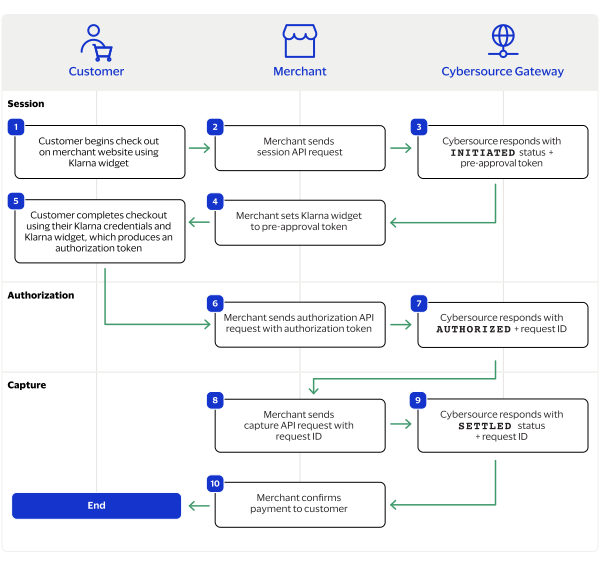
- The customer begins to checkout on the merchant website using the displayed Klarna widget.
- The merchant sends an inline session API request toCybersource. For more information, see Creating an Inline Session.If the customer changes their purchase selection after the merchant sends the session API request, the merchant must send an update session API request. For more information, see Updating a Session.
- Cybersourceresponds to the merchant with theINITIATEDstatus and a pre-approval token.
- The merchant sets theSession Token IDin the Klarna widget to the pre-approval token.
- The customer completes checkout using the Klarna widget, and the Klarna widget generates a unique authorization token.
- The merchant sends an authorization API toCybersourcerequest and includes the unique authorization token the Klarna widget displayed. For more information, see Authorize a Payment.
- Cybersourceresponds to the merchant with theAUTHORIZEDstatus and a request ID.
- The merchant sends a capture API request with the request ID. For more information, see Capture a Payment.
- Cybersourceresponds to the merchant with theSETTLEDstatus and a request ID.
- The merchant displays a payment confirmation to the customer.
Widget Installation for Inline Workflow
This workflow describes how to install the Klarna widget and complete a successful
transaction. For a description of a successful transaction with the Klarna widget
already installed, see Inline Session Workflow.
Figure:
Widget Installation for Inline Workflow
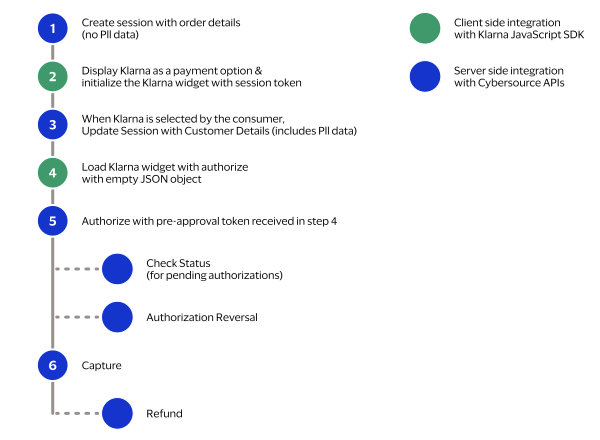
- Add the container for the Klarna widget to the HTML for your checkout page. This is a one-time operation and provides an iframe into which the Klarna widget will be dynamically loaded when the Klarna widget is initialized.<div id=#klarna_container"></div>
- When the customer displays your checkout page, send a create session request toCybersource. The sessions service creates a unique customer session and returns a pre-approval token. See Creating a HOP Session and Updating a Session.
- Present the available payment methods to the customer. When the customer chooses the Klarna payment method on your checkout page, install the Klarna software developer kit (SDK) and initialize it by callingKlarna.Payments.init. In the request, set the client token field to the value of the pre-approval token returned byCybersource.Initializing the Klarna SDK can take up to 10 seconds.Cybersourcerecommends that you try to initialize the SDK every three seconds, up to a maximum of three attempts.For additional information about initializing the Klarna SDK, see:Klarna.Payments.init({client_token: '<%=processorToken%>'}) if (count < 3) { setTimeout(initializeKlarna.bind(null, count), 3000); } else { showError() }
- Load the Klarna widget into the Klarna container by callingKlarna.Payments.loadand specifying the Klarna container.Klarna.Payments.load({ container: "#klarna_container", (...) })
- Display the Klarna payment options on your checkout page. Theshow_form = truestatement dynamically updates the payment options in the Klarna widget.if (res["show_form"] == true) { logging("Klarna Available Payment Option"); document.getElementById("auth_button").innerHTML = "<br><button type=\"button\" name=\"buy\" onclick=\"authorizeKlarnaOrder();\">Pay</button>" } else { logging("Klarna Not Available As A Payment Option"); }
- When the customer chooses one of the Klarna payment options:
- Send an update session request toCybersourcewith available customer information. See Creating a HOP Session and Updating a Session.
- CallKlarna.Payments.authorizeto authorize the order with Klarna. In the call, include an empty JSON object. For additional information about Klarna authorizations, see:
Klarna.Payments.authorize({}, function(res) { var auth_token = res["authorization_token"]; var isApproved = res["approved"]; var show_form = res["show_form"]; }) - Klarna validates the customer’s information and determines whether to authorize the order. When Klarna authorizes the order, Klarna returns an authorization token.
- Send an authorization request toCybersource. Set the pre-approval token field to the value of the authorization token returned by Klarna. See Authorize a Payment.
- WhenCybersourceapproves the authorization, send a capture request to complete the purchase. See Capture a Payment.When the authorization response indicates that the purchase is pending, send a check status request every hour until the payment status changes. See Check a Request Status.
Refunding a Payment Workflow
This workflow describes the sequence of events that comprises issuing a successful refund
with Klarna.
Figure:
Refund Workflow
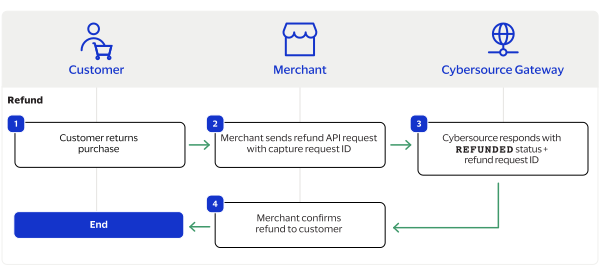
- The customer returns the purchase to the merchant.
- The merchant sends a refund API request toCybersourcewith the request ID from the successful capture. For more information, see Refund a Payment.
- Cybersourceresponds to the merchant with theREFUNDEDstatus and a refund request ID.
- The merchant displays a refund confirmation to the customer.
Reversing an Authorized Payment Workflow
This workflow describes the sequence of events that comprises reversing an authorization,
also known as cancelling a payment, with Klarna.
Figure:
Authorization Reversal Workflow
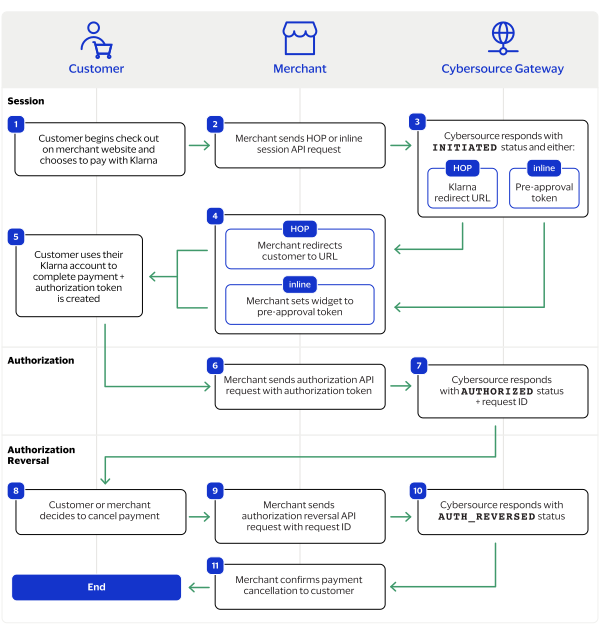
- The customer begins to checkout on the merchant website and either chooses the Klarna payment option or uses the Klarna widget.
- The merchant sends either a HOP or inline session API request toCybersource. For more information, see Creating a HOP Session and Creating an Inline Session.
- Cybersourceresponds with the initiated status and either a Klarna redirect URL or Klarna pre-approval token.
- The merchant either redirects the customer to a Klarna URL or sets the Klarna widget to a unique token.
- The customer completes the checkout using either the Klarna URL or widget. If the customer used the Klarna URL, the customer is redirected to the merchant website.
- The merchant sends an authorization API request toCybersource. For more information, see Authorize a Payment.
- Cybersourceresponds to the merchant with theAUTHORIZEDstatus and an authorization request ID.
- The customer or merchant decides to cancel the payment.
- The merchant sends an authorization reversal API request toCybersource. For more information, see Reverse an Authorized Payment.
- Cybersourceresponds to the merchant with theAUTH_REVERSEDstatus.
- The merchant displays a payment cancellation confirmation to the customer.
Transaction Statuses Workflow
This workflow describes the sequence of possible statuses you can receive when processing
a Klarna transaction.
Figure:
Transaction Statuses Workflow
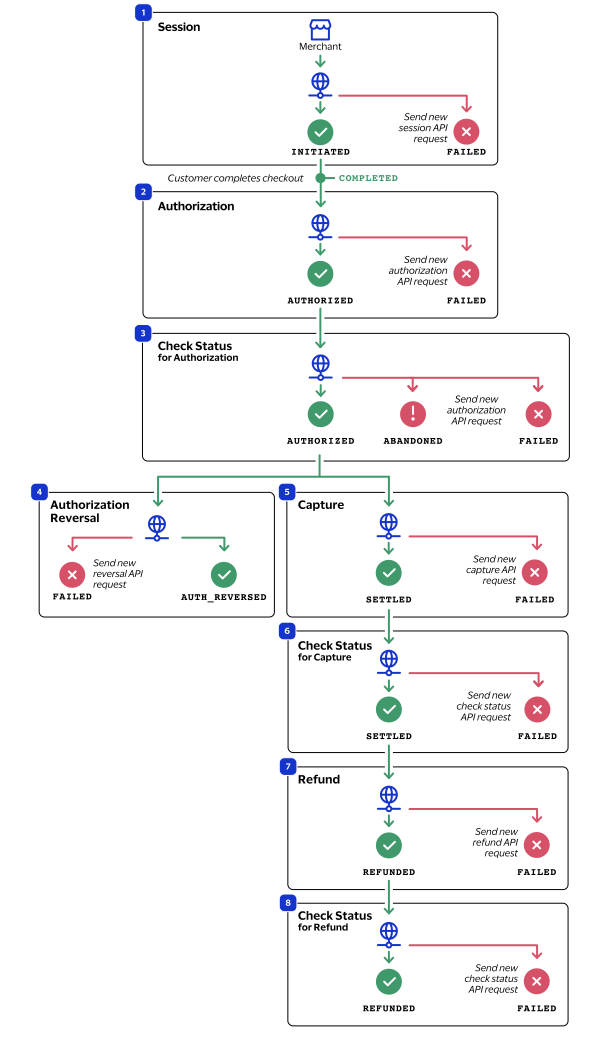
- The merchant sends a session API request toCybersourceand receives one of these possible statuses:
- COMPLETED: The customer completed the checkout process. You can now authorize the funds.
- FAILED: The session request is not successful. Send a new session request.
- INITIATED: The session is initiated and the customer may now checkout. Send periodic check status requests until the status updates toCOMPLETED. For more information, see Check a Request Status.
- The merchant sends an authorization API request toCybersourceand receives one of these possible statuses:
- FAILED: The authorization request is not successful. Send a new authorization request. A failed request can be due to either Klarna rejecting the transaction or a technical error.
- AUTHORIZED: The customer's funds are authorized. You can now capture the authorized amount.
- The merchant sends a check status API request toCybersourceand receives one of these possible statuses:
- ABANDONED: The customer did not complete the payment using the redirect URL or widget.
- AUTHORIZED: The customer's funds are authorized. You can now capture the authorized amount.
- FAILED: The authorization request is not successful. Send a new authorization request. A failed request can be due to either Klarna rejecting the transaction or a technical error.
- If the customer or merchant decides to cancel the purchase, the merchant sends an authorization reversal API request toCybersourceand receives one of these possible statuses:
- FAILED: The authorization reversal is not successful. Send a new request. A failed request can be due to either Klarna rejecting the transaction or a technical error.
- AUTH_REVERSED: The authorization is successfully reversed.
- The merchant sends a capture API request toCybersourceand receives one of these possible statuses:
- FAILED: The capture request is not successful. Send a new capture request. A failed request can be due to either Klarna rejecting the transaction or a technical error.
- SETTLED: The capture request is settled for the requested amount.
- The merchant sends a check status for the capture API request toCybersourceand receives one of these possible statuses:
- CHARGEBACK: The customer submitted a payment dispute for the purchase, and Klarna reviewed and approved a chargeback to the customer. For more information about chargebacks, see Klarna Chargebacks.
- FAILED: The capture request is not successful. Send a new capture request. A failed request can be due to either Klarna rejecting the transaction or a technical error.
- SETTLED: The capture request is settled for the requested amount.
- If the customer returns a purchase, the merchant sends a refund API request toCybersourceand receives one of these possible statuses:
- FAILED: The refund request is not successful. Send a new refund request. A failed request can be due to either Klarna rejecting the transaction or a technical error.
- REFUNDED: The captured payment is successfully refunded.
- The merchant sends a check status for the refund API request toCybersourceand receives one of these possible statuses:
- FAILED: The refund request is not successful. Send a new refund request. A failed request can be due to either Klarna rejecting the transaction or a technical error.
- REFUNDED: The captured payment is successfully refunded.
Klarna API Requests
This section describes how to send these Klarna requests using the
REST API
:Creating a HOP Session
Create a new session whenever the customer displays your checkout page.
- HOP Specifications
- When you send a HOP session request, set theapSessionService_paymentFlowModefield value toHOP.Cybersourceresponds with a Klarna redirect URL in theprocessorInformation.paymentUrlfield. Send the customer to the redirect URL to complete the checkout. When the customer completes the checkout, Klarna redirects the customer back to the merchant website and includes a token in the merchant URL. The token generated by Klarna can then be used in the authorization request to link it to the session.
Klarna Payment Methods
When you request the session service, you can determine the Klarna payment method you
want to offer your customers. Set the optional
paymentInformation.paymentType.method.type
request field to a value
listed in the Payment Method column. Payment Method Field Value | Description | Klarna Products |
|---|---|---|
pay_later | Customer pays total bill at a set date. |
|
pay_now | Customer pays total bill at the time of checkout. |
|
pay_over_time | Customer pays bill in equal multiple installments. |
|
- Example: Payment Methods in Session Request
- { "paymentInformation": { "paymentType": { "method": { "type": "pay_later" } } } }
Calculating the Grand Total Amount
Klarna requires that the grand total amount of a purchase be included in the request
using the
orderInformation.amountDetails.totalAmount
field. The
country of the transaction and the use of coupons affect how to calculate the grand
total amount. For more information about how to calculate the grand total amount, see Calculating the Grand Total Amount in the Reference Information section.
Language Specification
To set the language for your Klarna checkout experience, include the
buyerInformation.language
field in your request. By not including
this field, the Klarna checkout experience is set to English by default. For a list
of all possible values, see the ISO Standard Language Codes
guide. - Example: Language Specification
- { "buyerInformation": { "language": "es" } }
Endpoints
Production:
POST
https://api.cybersource.com
/pts/v2/payment-referencesTest:
POST
https://apitest.cybersource.com
/pts/v2/payment-referencesLine Items
Klarna uses line items when you send a create session and update session requests.
Line items are used to include information about the goods that
your customers purchase, such as product name, quantity, and price.
Line items are represented in a request as the
lineItem[]
array request fields.For more information about how to properly format line items in your request, see
Using Line Items in the Reference Information section.
Response Status
The session service responds with one of these statuses as the
status
field
value:- FAILED: The session request is not successful. Send a new session request.
- INITIATED: The session is initiated and the customer may now checkout. Send periodic check status requests until the status updates toCOMPLETED. For more information, see Check a Request Status.
When you send a check status request for an initiated session, you can receive one of
these statuses when the session updates:
- ABANDONED: The customer did not complete the payment using the redirect URL or widget.
- COMPLETED: The customer completed the checkout process. You can now authorize the funds.
Requesting to Create a HOP Session
Follow these steps to successfully create a HOP session.
- Send aPOSTrequest to thehttps://apitest.cybersource.com/pts/v2/payment-referencesendpoint and include these required fields:IMPORTANTDo not send any personally identifiable information (PII) data about the customer in the request to create a session.
- orderInformation.billTo.postalCode
- Set toKLARNA.
- Set toINVOICE.
- Set toAP_SESSIONS.
- processingInformation.paymentFlowMode
- Set toHOPto display the Klarna widget on your checkout page.
- processingInformation.sessionType
- Set toN.
- You can include these optional fields in the request:
- IMPORTANTIf this field is not included, the language is set to English by default.
- For a list of possible values, see theISO Standard Language Codesguide.
- orderInformation.lineItems[].productCode
- orderInformation.lineItems[].productDescription
- orderInformation.lineItems[].quantity
- orderInformation.lineItems[].taxAmount
- paymentInformation.paymentType.method.type
- paymentInformation.type
- processingInformation.sessionType
- To include an optional coupon in the request, include these fields:
- Redirect the customer to the URL in theprocessorInformation.paymentURLresponse field."processorInformation": { "paymentUrl": "https://pay.playground.klarna.com/na/hpp/payments/2JUV3NC" }
- When the customer completes the checkout using their Klarna credentials, Klarna redirects the customer to the URL you specified in themerchantInformation.successURLrequest field. Klarna appends the merchant's success URL with a unique Klarna generated token.https://www.test.com?auth-token=d9b4496b-f4b1-5ad5-bbe0-7f666682126
- When you send the authorization request, set theprocessorInformation.preApprovalTokenfield to the unique token Klarna appended to the success URL."processorInformation":{ "preApprovalToken": "d9b4496b-f4b1-5ad5-bbe0-7f666682126" }
Example: Create a HOP Session
Request
{
    "merchantInformation": {
    "cancelUrl": "https://www.merchant-cancel-redirect-url.com",
    "successUrl": "https://www.merchant-success-redirect-url.com",
    "failureUrl": "https://www.merchant-failure-redirect-url.com"
  },
    "orderInformation": {
        "billTo": {
            "administrativeArea": "VA",
            "postalCode": "22901",
            "country": "US"
        },
        "amountDetails": {
            "currency": "USD"
        },
        "lineItems": [
            {
                "productName": "Skirt on the sky",
                "unitPrice": "1.00",
                "totalAmount": "1.00"
            }
        ]
    },
    "paymentInformation": {
        "paymentType": {
            "name": "INVOICE",
            "method": {
                "name": "KLARNA"
            }
        }
    },
    "processingInformation": {
        "actionList": "AP_SESSIONS",
        "paymentFlowMode": "HOP",
        "sessionType": "N"
    }
}
Response to a Successful Request
{
    "_links": {
        "self": {
            "method": "POST",
            "href": "/pts/v2/payment-references"
        },
        "updateSession": {
            "method": "PATCH",
            "href": "/pts/v2/payment-references/7297155024486439603955"
        },
        "status": {
            "method": "POST",
            "href": "/pts/v2/refresh-payment-status/7297155024486439603955"
        },
        "order": {
            "method": "POST",
            "href": "/pts/v2/payment-references/7297155024486439603955/intents"
        }
    },
    "clientReferenceInformation": {
        "code": "1729715502582"
    },
    "id": "7297155024486439603955",
    "orderInformation": {
        "amountDetails": {
            "totalAmount": "1.00",
            "currency": "USD"
        }
    },
    "processorInformation": {
        "responseDetails": "00000",
        "paymentUrl": "https://pay.playground.klarna.com/na/hpp/payments/23NmehI",
        "responseCode": "00000",
        "token": "eyJhbGciOiJSUzI1NiIsImtpZCI6IjgyMzA1ZWJjLWI4MTEtMzYzNy1hYTRjLTY2ZWNhMTg3NGYzZCJ9.eyJzZXNzaW9uX2lkIjoiYmRiOGU5MGQtNzhiOS02ZWJkLTllZjMtOTNmNWYyN2Q3MmRhIiwiYmFzZV91cmwiOiJodHRwczovL2pzLnBsYXlncm91bmQua2xhcm5hLmNvbS9uYS9rcCIsImRlc2lnbiI6ImtsYXJuYSIsImxhbmd1YWdlIjoiZW4iLCJwdXJjaGFzZV9jb3VudHJ5IjoiVVMiLCJlbnZpcm9ubWVudCI6InBsYXlncm91bmQiLCJtZXJjaGFudF9uYW1lIjoiUGxheWdyb3VuZCBEZW1vIE1lcmNoYW50Iiwic2Vzc2lvbl90eXBlIjoiUEFZTUVOVFMiLCJjbGllbnRfZXZlbnRfYmFzZV91cmwiOiJodHRwczovL25hLnBsYXlncm91bmQua2xhcm5hZXZ0LmNvbSIsInNjaGVtZSI6dHJ1ZSwiZXhwZXJpbWVudHMiOlt7Im5hbWUiOiJrcGMtcHNlbC00NDI5IiwidmFyaWF0ZSI6ImEifSx7Im5hbWUiOiJrcC1jbGllbnQtb25lLXB1cmNoYXNlLWZsb3ciLCJ2YXJpYXRlIjoidmFyaWF0ZS0xIn0seyJuYW1lIjoia3BjLTFrLXNlcnZpY2UiLCJ2YXJpYXRlIjoidmFyaWF0ZS0xIn0seyJuYW1lIjoia3AtY2xpZW50LXV0b3BpYS1zdGF0aWMtd2lkZ2V0IiwidmFyaWF0ZSI6ImluZGV4IiwicGFyYW1ldGVycyI6eyJkeW5hbWljIjoidHJ1ZSJ9fSx7Im5hbWUiOiJrcC1jbGllbnQtdXRvcGlhLWZsb3ciLCJ2YXJpYXRlIjoidmFyaWF0ZS0xIn0seyJuYW1lIjoiaW4tYXBwLXNkay1uZXctaW50ZXJuYWwtYnJvd3NlciIsInBhcmFtZXRlcnMiOnsidmFyaWF0ZV9pZCI6Im5ldy1pbnRlcm5hbC1icm93c2VyLWVuYWJsZSJ9fSx7Im5hbWUiOiJrcC1jbGllbnQtdXRvcGlhLXNkay1mbG93IiwidmFyaWF0ZSI6InZhcmlhdGUtMSJ9LHsibmFtZSI6ImtwLWNsaWVudC11dG9waWEtd2Vidmlldy1mbG93IiwidmFyaWF0ZSI6InZhcmlhdGUtMSJ9LHsibmFtZSI6ImluLWFwcC1zZGstY2FyZC1zY2FubmluZyIsInBhcmFtZXRlcnMiOnsidmFyaWF0ZV9pZCI6ImNhcmQtc2Nhbm5pbmctZW5hYmxlIn19XSwicmVnaW9uIjoidXMiLCJvcmRlcl9hbW91bnQiOjEwMCwib2ZmZXJpbmdfb3B0cyI6Miwib28iOiIxOCIsInZlcnNpb24iOiJ2MS4xMC4wLTE1OTAtZzNlYmMzOTA3In0.Mx5JnoG7Te4IsB3yrxOEVOFnudHvOkd2XJ0EO6w6lBVI0wb2B5oYeh9pESt2EpqP0SYAXmXjNyA2gZ1whrByPhwnoxTVYW74EcdBYYMKlgYZ9JPiUlETYz5wOma_gCXWhQdFKUSopX5ZAL32v_6tDSYSCQt9CbLEyXwx4v-6utKbVH5mhCdaMxfcdzLIRNoZaFpk1CNgb-gu2hXtHm-e4dd8mIEf44xyexl_SZy7cCEUFS3QpmVt7VJtLNJgI6t3kFPSfmW4k2M189UiyDFnK26nE6loXIcGdzsO-pcHs3GhWteqPBvgg2XyQE9d2JFlo5BMHvVMieevI2Ox651t1g"
    },
    "reconciliationId": "XFZ402EJ8ZWO",
    "status": "COMPLETED",
    "submitTimeUtc": "2024-10-23T203147Z"
}
Creating an Inline Session
Create a new session whenever the customer displays your checkout page.
- Inline Specifications
- When you send a session request, set theapSessionService_paymentFlowModefield toinline.Cybersourceresponds with a pre-approval token in theprocessorInformation.tokenfield. Set the Klarna widget installed in the merchant website to token. When the customer completes the checkout using the Klarna widget, the widget responds with an authorization token. Include the authorization token in the authorization request to link the authorization to the session.
Klarna Payment Methods
When you request the session service, you can determine the Klarna payment method you
want to offer your customers. Set the optional
paymentInformation.paymentType.method.type
request field to a value
listed in the Payment Method column. Payment Method Field Value | Description | Klarna Products |
|---|---|---|
pay_later | Customer pays total bill at a set date. |
|
pay_now | Customer pays total bill at the time of checkout. |
|
pay_over_time | Customer pays bill in equal multiple installments. |
|
- Example: Payment Methods in Session Request
- { "paymentInformation": { "paymentType": { "method": { "type": "pay_later" } } } }
Calculating the Grand Total Amount
Klarna requires that the grand total amount of a purchase be included in the request
using the
orderInformation.amountDetails.totalAmount
field. The
country of the transaction and the use of coupons affect how to calculate the grand
total amount. For more information about how to calculate the grand total amount, see Calculating the Grand Total Amount in the Reference Information section.
Language Specification
To set the language for your Klarna checkout experience, include the
buyerInformation.language
field in your request. By not including
this field, the Klarna checkout experience is set to English by default. For a list
of all possible values, see the ISO Standard Language Codes
guide. - Example: Language Specification
- { "buyerInformation": { "language": "es" } }
Line Items
Klarna uses line items when you send a create session and update session requests.
Line items are used to include information about the goods that
your customers purchase, such as product name, quantity, and price.
Line items are represented in a request as the
lineItem[]
array request fields.For more information about how to properly format line items in your request, see
Using Line Items in the Reference Information section.
Endpoints
Production:
POST
https://api.cybersource.com
/pts/v2/payment-referencesTest:
POST
https://apitest.cybersource.com
/pts/v2/payment-referencesResponse Status
The session service responds with one of these statuses as the
status
field
value:- FAILED: The session request is not successful. Send a new session request.
- INITIATED: The session is initiated and the customer may now checkout. Send periodic check status requests until the status updates toCOMPLETED. For more information, see Check a Request Status.
When you send a check status request for an initiated session, you can receive one of
these statuses when the session updates:
- ABANDONED: The customer did not complete the payment using the redirect URL or widget.
- COMPLETED: The customer completed the checkout process. You can now authorize the funds.
Requesting to Create an Inline Session
Follow these steps to successfully create an inline session.
- Send aPOSTrequest to thehttps://apitest.cybersource.com/pts/v2/payment-referencesendpoint and include these required fields:IMPORTANTDo not send any personally identifiable information (PII) data about the customer in the request to create a session.
- paymentInformation.paymentType.method.name
- Set toKLARNA.
- paymentInformation.paymentType.method.type
- Set toINVOICE.
- Set toAP_SESSIONS.
- processingInformation.paymentFlowMode
- Set toinlineto display the Klarna widget on your checkout page.
- You can include these optional fields in the request:
- IMPORTANTIf this field is not included, the language is set to English by default.
- For a list of possible values, see theISO Standard Language Codesguide.
- orderInformation.lineItems[].productCode
- orderInformation.lineItems[].productDescription
- orderInformation.lineItems[].quantity
- orderInformation.lineItems[].taxAmount
- paymentInformation.paymentType.method.type
- paymentInformation.type
- processingInformation.sessionType
- To include an optional coupon in the request, include these fields:
- Set the Session Token ID in the Klarna widget to theprocessorInformation.tokenfield value from the session response.IDeyJhbGciOiJSUzI1NiIsImtpZCI6IjgyMzA1ZWJjLWI4MTEtMzYzNy...
- When the customer completes the payment using the Klarna widget, the Klarna widget creates a unique authorization token. Store the token for the authorization request.Authorizaiton Token:a6b2229c-665b-5660-a5fe-063bef3d9a1e
- When you send the follow-on authorization request, set theprocessorInformation.preApprovalTokenrequest field to the authorization token value created by the Klarna widget.{ "processorInformation": { "preApprovalToken": "a6b2229c-665b-5660-a5fe-063bef3d9a1e" } }
Example: Create an Inline Session
Request
{
    "merchantInformation": {
    "cancelUrl": "https://www.test0.com",
    "successUrl": "https://www.google.com",
    "failureUrl": "https://www.test1.com"
  },
    "orderInformation": {
        "billTo": {
            "firstName": "John",
            "lastName": "Smith",
            "address1": "123 Happy St",
            "locality": "Sunnyville",
            "administrativeArea": "CA",
            "postalCode": "55555",
            "country": "US",
            "email": "test email dot com"
        },
        "amountDetails": {
            "totalAmount": "1.00",
            "currency": "USD"
        },
        "lineItems": [
            {
                "productCode": "A4890B5023",
                "productName": "Skirt on the sky",
                "productSku": "skirtonsky$bluegreen",
                "quantity": "1",
                "unitPrice": "1.00",
                "totalAmount": "1.00",
                "taxAmount": "0.00",
                "productDescription": "Amnesiac Shirt"
            }
        ]
    },
    "paymentInformation": {
        "paymentType": {
            "name": "INVOICE",
            "method": {
                "name": "KLARNA",
                "type": "pay_now"
            }
        }
    },
    "processingInformation": {
        "actionList": "AP_SESSIONS",
        "paymentFlowMode": "inline",
        "sessionType": "N"
    }
}
Response to a Successful Request
{
    "_links": {
        "self": {
            "method": "POST",
            "href": "/pts/v2/payment-references"
        },
        "updateSession": {
            "method": "PATCH",
            "href": "/pts/v2/payment-references/7322957972776014303955"
        },
        "status": {
            "method": "POST",
            "href": "/pts/v2/refresh-payment-status/7322957972776014303955"
        },
        "order": {
            "method": "POST",
            "href": "/pts/v2/payment-references/7322957972776014303955/intents"
        }
    },
    "clientReferenceInformation": {
        "code": "1732295797319"
    },
    "id": "7322957972776014303955",
    "orderInformation": {
        "amountDetails": {
            "totalAmount": "1.00",
            "currency": "USD"
        }
    },
    "processorInformation": {
        "responseDetails": "00000",
        "responseCode": "00000",
        "token": "inline_session_token_value"
    },
    "reconciliationId": "XEKSO3R50AFW",
    "status": "COMPLETED",
    "submitTimeUtc": "2024-11-22T171638Z"
}
Updating a Session
You can update a session for 48 hours after creating it. The session update service
enables you to update items in the cart and customer information, with or without
sending customer billing details. However, when you send customer billing details in the
session update request, send as many billing details as possible for the best customer
checkout experience. For a list of all of the information you can update in a session,
see the Optional Fields for Updating a Session.
Updating a session requires the request ID from the original session, which is in the
id
response field.Only update a session after the customer consents to sharing their data with Klarna.
IMPORTANT
PII data about a customer should be sent only after the customer chooses the Klarna payment option on your checkout page and consents to sharing their data with Klarna.
Klarna Payment Methods
When you request the session service, you can determine the Klarna payment method you
want to offer your customers. Set the optional
paymentInformation.paymentType.method.type
request field to a value
listed in the Payment Method column. Payment Method Field Value | Description | Klarna Products |
|---|---|---|
pay_later | Customer pays total bill at a set date. |
|
pay_now | Customer pays total bill at the time of checkout. |
|
pay_over_time | Customer pays bill in equal multiple installments. |
|
- Example: Payment Methods in Session Request
- { "paymentInformation": { "paymentType": { "method": { "type": "pay_later" } } } }
Language Specification
To set the language for your Klarna checkout experience, include the
buyerInformation.language
field in your request. By not including
this field, the Klarna checkout experience is set to English by default. For a list
of all possible values, see the ISO Standard Language Codes
guide. - Example: Language Specification
- { "buyerInformation": { "language": "es" } }
Endpoints
Send a PATCH request to one of these endpoints:
Production:
PATCH
https://api.cybersource.com
/pts/v2/payment-references/{id}
Test:
PATCH
https://apitest.cybersource.com
/pts/v2/payment-references/{id}
Set the to the request ID
contained in the original session response.
{id}
Response Status
The session service responds with one of these statuses as the field value:
- INITIATED: The session is initiated and the customer may now checkout.
- COMPLETED: The customer completed the checkout process.
The session service also responds with a reason code as the field value. For more information about reason
codes, see the .
Response Statuses
The session service responds with one of these statuses as the field value:
- COMPLETED: The customer completed the checkout process.
- INITIATED: The session is initiated and the customer may now checkout.
The session service also responds with a reason code as the field value. For more information about reason
codes, see the .
Required Fields for Updating a Session
- orderInformation.billTo.postalCode
- Set toKLARNA.
- Set toINVOICE.
- Set toAP_SESSIONS.
- processingInformation.paymentFlowMode
- Set to one of these possible values:
- HOP
- inline
- processingInformation.sessionType
- Set toU.
Country-Specific Fields
Coupon Fields
To include a coupon in your request, include these fields.
Optional Fields for Updating a Session
These are the optional fields you can include to update an existing session.
- IMPORTANTIf this field is not included, the language is set to English by default.
- For a list of possible values, see theISO Standard Language Codesguide.
- orderInformation.lineItems.productCode
- orderInformation.lineItems.productDescription
- orderInformation.lineItems.productSku
- orderInformation.lineItems.quantity
- orderInformation.lineItems.taxAmount
- paymentInformation.type
Example: Update a Session
Request
{
    "merchantInformation": {
    "cancelUrl": "https://www.test0.com",
    "successUrl": "https://www.google.com",
    "failureUrl": "https://www.test1.com"
  },
    "orderInformation": {
        "billTo": {
            "administrativeArea": "CA",
            "postalCode": "22901",
            "country": "US"
        },
        "amountDetails": {
            "currency": "USD"
        },
        "lineItems": [
            {
                "productName": "Skirt on the sky",
                "unitPrice": "2.00",
                "totalAmount": "2.00"
            }
        ]
    },
    "paymentInformation": {
        "paymentType": {
            "name": "INVOICE",
            "method": {
                "name": "KLARNA"
            }
        }
    },
    "processingInformation": {
        "actionList": "AP_SESSIONS",
        "paymentFlowMode": "HOP",
        "sessionType": "U"
    }
}
Response to a Successful Request
{
    "_links": {
        "self": {
            "method": "POST",
            "href": "/pts/v2/payment-references"
        },
        "updateSession": {
            "method": "PATCH",
            "href": "/pts/v2/payment-references/7303027715656351504951"
        },
        "status": {
            "method": "POST",
            "href": "/pts/v2/refresh-payment-status/7303027715656351504951"
        },
        "order": {
            "method": "POST",
            "href": "/pts/v2/payment-references/7303027715656351504951/intents"
        }
    },
    "clientReferenceInformation": {
        "code": "1730302771619"
    },
    "id": "7303027715656351504951",
    "orderInformation": {
        "amountDetails": {
            "totalAmount": "2.00",
            "currency": "USD"
        }
    },
    "processorInformation": {
        "responseDetails": "00000",
        "paymentUrl": "https://pay.playground.klarna.com/na/hpp/payments/2BUwyUw",
        "responseCode": "00000",
    },
    "reconciliationId": "XFZ3Y2N91JHR",
    "status": "COMPLETED",
    "submitTimeUtc": "2024-10-30T153932Z"
}
Authorize a Payment
Authorizing a purchase requires the Klarna generated token from a completed session
creation. Set the
processorInformation.preApprovalToken
request field value to the token value.
Where you retrieve the token is dependent on whether you created a HOP session or inline
session. If you created a HOP session, the token is appended to the success URL the
customer is redirected to after completing the checkout using their Klarna account. If
you created an inline session, the token is generated by the Klarna widget when the
customer completes the checkout. After authorizing a payment, you can capture the authorization for up to 28 days.
Merchant-Defined Data
Merchant-defined data is included in the
merchantDefinedData_mddField_5
field. IMPORTANT
This field has replaced the
merchantDefinedData_field5
field. If you
submit a request with the
merchantDefinedData_field5
field, Cybersource
automatically replaces the field with
merchantDefinedData_mddField_5
.WARNING
You are prohibited from including personally
identifying information (PII) in the
merchantDefinedData
fields for the purposes
of capturing, obtaining, and/or transmitting any PII. PII includes,
but is not limited to, address, credit card number, social security
number, driver's license, state-issued identification number,
passport number, and card verification number (CVV, CVC2, CVV2, CID,
CVN). In the event Cybersource
discovers you are
capturing and/or transmitting PII in the
merchantDefinedData
fields, whether or not
intentionally, Cybersource
immediately suspends your
merchant account, which results in a rejection of any and all
transaction requests submitted by the merchant account after the
point of suspension.Endpoints
Production:
POST
https://api.cybersource.com
/pts/v2/payments/Test:
POST
https://apitest.cybersource.com
/pts/v2/payments/Response Status
The authorization service responds with one of these statuses as the
status
field value:- FAILED: The authorization request is not successful. Send a new authorization request. A failed request can be due to either Klarna rejecting the transaction or a technical error.
- AUTHORIZED: The customer's funds are authorized. You can now capture the authorized amount.
When you send a check status request for a pending authorization, you can receive
this status when the authorization updates:
Required Fields for an Authorization
- Set toKLARNA.
- Set toINVOICE.
- Set toAP_AUTH.
- Set to the token value created by Klarna.
- If you created a HOP session, the token is appended to the merchant success URL.
- If you created an inline session, the token is generated by the Klarna widget.
Country-Specific Fields
Optional Fields for an Authorization
- merchantDefinedInformation[].value
- orderInformation.billTo.city
- Set tocoupon.
- orderInformation.shipTo.city
Example: Authorizing a Payment
Request
{
  "orderInformation": {
    "billTo": {
      "administrativeArea": "TX",
      "postalCode": "78757",
      "country": "US"
    },
    "amountDetails": {
      "totalAmount": "1.00",
      "currency": "USD"
    }
  },
  "paymentInformation": {
    "paymentType": {
      "name": "INVOICE",
      "method": {
        "name": "KLARNA"
      }
    }
  },
  "processingInformation": {
    "actionList": "AP_AUTH"
  },
  "processorInformation":{
      "preApprovalToken": "87b09e60-4e34-69c6-9bea-906516cdec18"
  }
}
Response to a Successful Request
{
    "_links": {
        "authReversal": {
            "method": "POST",
            "href": "/pts/v2/payments/7297199754036380503955/reversals"
        },
        "capture": {
            "method": "POST",
            "href": "/pts/v2/payments/7297199754036380503955/captures"
        },
        "self": {
            "method": "POST",
            "href": "/pts/v2/payments/7297199754036380503955"
        },
        "status": {
            "method": "POST",
            "href": "/pts/v2/refresh-payment-status/7297199754036380503955"
        }
    },
    "clientReferenceInformation": {
        "code": "1729717123388"
    },
    "id": "7297199754036380503955",
    "orderInformation": {
        "invoiceDetails": {
            "productId": "paylaterbycard"
        },
        "amountDetails": {
            "totalAmount": "1.00",
            "currency": "USD"
        }
    },
    "processorInformation": {
        "responseDetails": "00003",
        "transactionId": "dfcf1b24-311d-4e10-9be9-3b5f371bbe23",
        "responseCode": "00003"
    },
    "reconciliationId": "XFZ402EJ8ZWS",
    "status": "AUTHORIZED",
    "submitTimeUtc": "2024-10-23T20:58:47Z"
}
Update an Authorized Payment
Successfully processed authorizations can be updated as follow-on authorizations before
you capture or reverse the payment. Follow-on authorizations enable you to update the
billing, shipping, itemization, and item break up information of already submitted
orders. When updating an authorization, set the
processingInformation.linkId
field to the id
field
value from the original authorization response in order to link your request to the
original authorization. Endpoints
Production:
POST
https://api.cybersource.com
/pts/v2/payments/Test:
POST
https://apitest.cybersource.com
/pts/v2/payments/Response Status
The authorization service responds with one of these statuses as the
status
field value:- AUTHORIZED: The payment is successfully authorized.
- FAILED: The authorization request failed.
- PENDING: The authorization request is accepted but is not authorized. Request the check status service to retrieve status updates. For more information, see Check Status.
The authorization service also responds with a reason code as the field value. For more information
about reason codes, see the .
Required Fields for Updating an Authorization
- Set toKLARNA.
- Set toINVOICE.
- Set toAP_AUTH.
- Set to theidfield value from the initial authorization response.
- Set to the token generated by Klarna.
Country-Specific Fields
Include these country-specific field in addition to the required fields listed
above.
Optional Fields for Updating an Authorization
- merchantDefinedInformation[].value
- orderInformation.billTo.city
- Set tocoupon.
- orderInformation.shipTo.city
Example: Updating an Authorized Payment
Request
{
  "orderInformation": {
    "billTo": {
      "administrativeArea": "TX",
      "postalCode": "78757",
      "country": "US"
    },
    "amountDetails": {
      "totalAmount": "1.00",
      "currency": "USD"
    }
  },
  "paymentInformation": {
    "paymentType": {
      "name": "INVOICE",
      "method": {
        "name": "KLARNA"
      }
    }
  },
  "processingInformation": {
    "actionList": "AP_AUTH",
    "linkId": "7304002418446743104951"
  },
  "processorInformation":{
      "preApprovalToken": "abb1c505-6862-64f8-9bea-df68d3fbe397"
  }
}
Response to a Successful Request
{
    "_links": {
        "authReversal": {
            "method": "POST",
            "href": "/pts/v2/payments/7304003239726834704953/reversals"
        },
        "capture": {
            "method": "POST",
            "href": "/pts/v2/payments/7304003239726834704953/captures"
        },
        "self": {
            "method": "POST",
            "href": "/pts/v2/payments/7304003239726834704953"
        },
        "status": {
            "method": "POST",
            "href": "/pts/v2/refresh-payment-status/7304003239726834704953"
        }
    },
    "clientReferenceInformation": {
        "code": "1730400324002"
    },
    "id": "7304003239726834704953",
    "orderInformation": {
        "invoiceDetails": {
            "productId": "paylaterbycard"
        },
        "amountDetails": {
            "totalAmount": "1.00",
            "currency": "USD"
        }
    },
    "processorInformation": {
        "responseDetails": "00003",
        "transactionId": "778a6b5f-48cb-43dc-b684-68d2540524c2",
        "responseCode": "00003"
    },
    "reconciliationId": "XFZ552N8J2WJ",
    "status": "AUTHORIZED",
    "submitTimeUtc": "2024-10-31T18:45:25Z"
}
Reverse an Authorized Payment
The authorization reversal service enables you to reverse the amount that was authorized.
To reverse an authorization, you must have the authorization request ID, which is the
id
field value from the authorization response. To reverse a follow-on authorization, use
the request ID from the follow-on authorization response.Endpoints
Production:
POST
https://api.cybersource.com
/pts/v2/payments/{id}
/reversalsTest:
POST
https://apitest.cybersource.com
/pts/v2/payments/{id}
/reversalsSet the to the request ID
returned in the authorization request.
{id}
Response Status
The authorization
reversal service responds with one of these statuses as the
status
field value:- PENDING: The authorization reversal request is successful and is currently processing. Send periodic check status requests until you receive an updated status. For more information, see Check a Request Status.
- FAILED: The authorization reversal is not successful. Send a new request. A failed request can be due to either Klarna rejecting the transaction or a technical error.
When you send a check status request for a pending authorization reversal, you can
receive this status when the authorization reversal updates:
- AUTH_REVERSED: The authorization is successfully reversed.
Required Fields for Authorization Reversal
Include these required fields to reverse an authorization.
- Set toKLARNA.
- Set toINVOICE.
- Set toAP_AUTH_REVERSAL
Optional Field for Authorization Reversal
Example: Reversing an Authorization
Request
{
  "paymentInformation": {
    "paymentType": {
      "name": "INVOICE",
      "method": {
        "name": "KLARNA"
      }
    }
  },
  "processingInformation": {
    "actionList": "AP_AUTH_REVERSAL"
  }
}
Response to a Successful Request
{
    "_links": {
        "self": {
            "method": "POST",
            "href": "/pts/v2/reversals/7297199754036380503955"
        },
        "status": {
            "method": "POST",
            "href": "/pts/v2/refresh-payment-status/7297199754036380503955"
        }
    },
    "clientReferenceInformation": {
        "code": "refnum-1234"
    },
    "id": "7291980786556590303955",
    "processorInformation": {
        "responseDetails": "00007",
        "responseCode": "00007"
    },
    "reconciliationId": "XFZ3Z2EJC1OZ",
    "reversalAmountDetails": {
        "reversedAmount": "0"
    },
    "status": "AUTH_REVERSED",
    "submitTimeUtc": "2024-10-21T17:37:52Z"
}
Capture a Payment
The capture service enables you to capture the entire authorized amount or part of the
authorized amount. Klarna supports multiple capture requests when the total amount of
all captures is less than the authorized amount.
You can capture an authorization for up to 28 days after a payment is authorized.
Endpoints
Production:
POST
https://api.cybersource.com
/pts/v2/payments/{id}
/capturesTest:
POST
https://apitest.cybersource.com
/pts/v2/payments/{id}
/capturesSet the to the request ID
contained in the authorization response.
{id}
Response Statuses
The capture service responds with one of these statuses as the
status
response field value:- FAILED: The capture request is not successful. Send a new capture request. A failed request can be due to either Klarna rejecting the transaction or a technical error.
- PENDING: The capture request is accepted but is not captured. Request the check status service to retrieve status updates. For more information, see Check Status.
When you send a check status request for a pending capture, you can receive this
status when the status updates:
- CHARGEBACK: The customer submitted a payment dispute for the purchase, and Klarna reviewed and approved a chargeback to the customer. For more information about chargebacks, see Klarna Chargebacks.
- SETTLED: The capture request is settled for the requested amount.
Required Fields for a Capture
Optional Fields for a Capture
Choose from these optional fields to include additional information when capturing a
payment.
Example: Capture a Payment
Request
{
    "orderInformation": {
        "amountDetails": {
            "totalAmount": "1.00",
            "currency": "USD"
        }
    },
    "paymentInformation": {
        "paymentType": {
            "name": "INVOICE",
            "method": {
                "name": "KLARNA"
            }
        }
    },
    "processingInformation": {
        "actionList": "AP_CAPTURE"
    }
}
Response to a Successful Request
{
    "_links": {
        "self": {
            "method": "POST",
            "href": "/pts/v2/captures/7297199754036380503955"
        },
        "refund": {
            "method": "POST",
            "href": "/pts/v2/captures/7297199754036380503955/refunds"
        },
        "status": {
            "method": "POST",
            "href": "/pts/v2/refresh-payment-status/7297199754036380503955"
        }
    },
    "clientReferenceInformation": {
        "code": "1729719300233"
    },
    "id": "7297199754036380503955",
    "orderInformation": {
        "amountDetails": {
            "totalAmount": "1.00",
            "currency": "USD"
        }
    },
    "processorInformation": {
        "responseDetails": "00004",
        "responseCode": "00004"
    },
    "reconciliationId": "XFZ3Y2EH1X26",
    "status": "SETTLED",
    "submitTimeUtc": "2024-10-23T21:35:04Z"
}
Refund a Payment
Refunding a payment returns the entire captured amount or part of the captured amount to
the customer's account. Klarna supports multiple refund requests when the total amount
of all refunds is less than the captured amount.'
Cybersource
recommends using the optional fields for a refund to ensure
the request is successful. For more information, see Optional Fields for a Refund.Endpoints
Production:
POST
https://api.cybersource.com
/pts/v2/payments/{id}
/refundsTest:
POST
https://apitest.cybersource.com
/pts/v2/payments/{id}
/refundsThe is the request ID
contained in the original transaction request.
{id}
Response Statuses
The refund service responds with one of these statuses as the
status
field
value:- FAILED: The refund request is not successful. Send a new refund request. A failed request can be due to either Klarna rejecting the transaction or a technical error.
- PENDING: The refund request is accepted but is not refunded. Request the check status service to retrieve status updates. For more information, see Check a Request Status.
- REFUNDED: The captured payment is successfully refunded.
The refund service also responds with a reason code as the field value. For more information about reason
codes, see the .
Required Fields for a Refund
Include these required fields to refund a payment.
Optional Fields for a Refund
- merchantDefinedInformation[].value
- orderInformation.billTo.city
- Set tocoupon.
- orderInformation.shipTo.city
Example: Issuing a Refund
Request
{
  "paymentInformation": {
    "paymentType": {
      "name": "INVOICE",
      "method": {
        "name": "KLARNA"
      }
    }
  },
  "processingInformation": {
    "actionList": "AP_REFUND"
  },
  "orderInformation": {
    "amountDetails": {
      "totalAmount": "1.00",
      "currency": "USD"
    }
  }
}
Response to a Successful Request
{
    "_links": {
        "self": {
            "method": "GET",
            "href": "/pts/v2/refunds/7297199754036380503955"
        },
        "status": {
            "method": "POST",
            "href": "/pts/v2/refresh-payment-status/7297199754036380503955"
        }
    },
    "clientReferenceInformation": {
        "code": "refnum-1234",
        "returnReconciliationId": "XZCJ2230ILKT"
    },
    "id": "7297199754036380503955",
    "orderInformation": {
        "amountDetails": {
            "currency": "USD"
        }
    },
    "processorInformation": {
        "responseDetails": "00006",
        "transactionId": "7ee251a9-6b9b-4f32-b486-30223db781cf",
        "responseCode": "00006"
    },
    "reconciliationId": "XFZ552EH3ISS",
    "refundAmountDetails": {
        "refundAmount": "1.00"
    },
    "status": "REFUNDED",
    "submitTimeUtc": "2024-10-21T17:06:50Z"
}
Check a Request Status
Request the check status service when the authorization response status is
PENDING
. A pending status occurs when Klarna reviews an
authorization. Cybersource
recommends that you request the check status
service hourly until the payment status changes.Endpoints
Production:
POST
https://api.cybersource.com
/pts/v2/refresh-payment-status/{id}
Test:
POST
https://apitest.cybersource.com
/pts/v2/refresh-payment-status/{id}
Set the
to the request ID of the API service you are retrieving.
{id}
Response Statuses
The check status service responds with one of these statuses in the
status
field value:- Session
- ABANDONED: The customer did not complete the payment using the redirect URL or widget.
- COMPLETED: The customer completed the checkout process. You can now authorize the funds.
- Authorization
- AUTHORIZED: The customer's funds are authorized. You can now capture the authorized amount.
- FAILED: The authorization request is not successful. Send a new authorization request. A failed request can be due to either Klarna rejecting the transaction or a technical error.
- Authorization Reversal
- AUTH_REVERSED: The authorization is successfully reversed.
- FAILED: The authorization reversal is not successful. Send a new request. A failed request can be due to either Klarna rejecting the transaction or a technical error.
- Capture
- CHARGEBACK: The customer submitted a payment dispute for the purchase, and Klarna reviewed and approved a chargeback to the customer. For more information about chargebacks, see Klarna Chargebacks.
- FAILED: The capture request is not successful. Send a new capture request. A failed request can be due to either Klarna rejecting the transaction or a technical error.
- SETTLED: The capture request is settled for the requested amount.
- Refund
- FAILED: The refund request is not successful. Send a new refund request. A failed request can be due to either Klarna rejecting the transaction or a technical error.
- REFUNDED: The captured payment is successfully refunded.
Required Fields for Check Status
- Set toKLARNA.
- Set toINVOICE.
- Set toAP_STATUS.
Optional Field for Check Status
REST Example: Request a Check
Status
REST
Example: Request a Check
StatusRequest
{
  "paymentInformation": {
    "paymentType": {
      "name": "INVOICE",
      "method": {
        "name": "KLARNA"
      }
    }
  },
  "processingInformation": {
    "actionList": "AP_STATUS"
  }
}
Response to a Successful Request
{
    "clientReferenceInformation": {
        "code": "1729719975533"
    },
    "id": "7297199754036380503955",
    "processorInformation": {
        "responseCode": "00003"
    },
    "reconciliationId": "XFZ3Y2EH1X28",
    "status": "AUTHORIZED"
}
Reference Information
This section contains reference information that is useful when integrating Klarna.
Calculating the Grand Total Amount
Klarna requires that the grand total amount of a purchase be included in the request
using the
orderInformation.amountDetails.totalAmount
field. The
country of the transaction and the use of coupons affect how to calculate the grand
total amount. US Grand Total with Coupons
To calculate the grand total amount
for US transactions with coupons, use this formula:
sum of
(unit price x quantity) for all items + item-level tax amount – sum of
(
coupon
amount x quantity) for all items – item-level discount
amountThis is the same formula with the respective API
fields:
sum of (
orderInformation.lineItems[].unitPrice
x
orderInformation.lineItems[].quantity
) for all items +
orderInformation.amountDetails.taxAmount
– sum of coupons
(orderInformation.lineItems[].unitPrice
x
orderInformation.lineItems[].quantity
) –
orderInformation.amountDetails.discountAmount
US Grand Total Amount with Coupons
This example shows the proper syntax and calculation of a grand total amount within
an API request.
{
 "orderInformation": {
        "lineItems": [
            {
                "productName": "test-product-1",
                "quantity": 5,
                "productDescription": "description-123",
                "unitPrice": "20",
                "taxAmount": "10",
                "totalAmount": "100",
                "typeOfSupply": "01"
            },
            {
                "productName": "test-product-2",
                "quantity": 1,
                "productDescription": "description-456",
                "unitPrice": "5",
                "taxAmount": "1",
                "totalAmount": "6",
                "typeOfSupply": "01"
            },
            {
                "productName": "test-product-3",
                "quantity": 2,
                "productDescription": "description-789",
                "unitPrice": "4",
                "taxAmount": "2",
                "totalAmount": "10",
                "typeOfSupply": "01"
            }
        ]
    }
}
US Grand Total without Coupons
To calculate the grand total amount
for US transactions without coupons, use this formula:
This is
the same formula with the respective API fields:
sum of (
orderInformation.lineItems[].unitPrice
x
orderInformation.lineItems[].quantity
) for all items +
orderInformation.amountDetails.taxAmount
–
orderInformation.amountDetails.discountAmount
Grand Total Amount
This example shows the proper syntax and calculation of a grand total amount within
an API request.
{
  "orderInformation": {
    "amountDetails": {
      "totalAmount": "135",
      "discountAmount": "30",
      "taxAmount": "15"
    },
    "lineItems": [
      {
        "quantity": "4",
        "unitPrice": "25",
        "totalAmount": "100"
      },
      {
        "quantity": "5",
        "unitPrice": "10",
        "totalAmount": "50"
      }
    ]
  }
}
Non-US Countries Grand Total with Coupons
To calculate the grand
total amount for non-US transactions with coupons, use this formula:
This is the same
formula with the respective API fields:
sum of (
orderInformation.lineItems[].quantity
)
for all items + sum of (orderInformation.amountDetails.taxAmount
)
for all items – sum of coupons
(orderInformation.lineItems[].unitPrice
x
orderInformation.lineItems[].quantity
) for all items –
orderInformation.amountDetails.discountAmount
Grand Total Amount
This example shows the proper syntax and calculation of a grand total amount within
an API request.
{
  "orderInformation": {
    "amountDetails": {
      "totalAmount": "135",
      "discountAmount": "30"
    },
    "lineItems": [
      {
        "quantity": "4",
        "unitPrice": "25",
        "totalAmount": "110",
        "taxAmount": "10"
      },
      {
        "quantity": "5",
        "unitPrice": "10",
        "totalAmount": "54",
        "taxAmount": "5"
      }
    ]
  }
}
Non-US Countries Grand Total without Coupons
To calculate the
grand total amount for non-US transactions without coupons, use this formula:
This is the same formula with the respective API
fields:
sum of
(
orderInformation.lineItems[].quantity
) for all items + sum
of (orderInformation.amountDetails.taxAmount
) for all items
Grand Total Amount
This example shows the proper syntax and calculation of a grand total amount within
an API request.
{
  "orderInformation": {
    "amountDetails": {
      "totalAmount": "165"
    },
    "lineItems": [
      {
        "quantity": "4",
        "unitPrice": "25",
        "totalAmount": "110",
        "taxAmount": "10"
      },
      {
        "quantity": "5",
        "unitPrice": "10",
        "totalAmount": "55",
        "taxAmount": "5"
      }
    ]
  }
}
Using Line Items
Klarna uses line items when you send a create session and update session requests.
Line items are used to include information about the goods that
your customers purchase, such as product name, quantity, and price.
Line items are represented in a request as the
lineItem[]
array request fields.These fields are required for each line item that you use:
Including Line Items in a Service Request
This example shows three valid line items.
{
  "orderInformation": {
    "lineItems": [
      {
        "productName": "Shirt",
        "unitPrice": "30.00",
        "totalAmount": "60.00"
      },
      {
        "productName": "Pants",
        "unitPrice": "19.99",
        "totalAmount": "19.99"
      },
      {
        "productName": "Dress",
        "unitPrice": "25.00",
        "totalAmount": "75.00"
      }
    ]
  }
}
Klarna Chargebacks
Customers can file payment disputes directly to Klarna to receive a
chargeback payment for the disputed amount.
- Eligibility
- Only captured payments that are in the settled status can be issued a chargeback.
- Results
- If Klarna approves the customer's payment dispute, you are charged for the disputed amount and a chargeback fee. These charges are deducted from your next settlement and the invoice will document the chargeback details. The disputed payment amount is issued to the customer by Klarna.If Klarna does not approve the customer's payment dispute, you are charged for any fees associated with the dispute.
IMPORTANT
Cybersource
is not involved with the payment dispute
review process. All payment disputes are handled between the customer and
Klarna.Generating Reports In the Business Center
Business Center
You can generate various types of reports for your financial and reconciliation data. For
more information about how to automate your reports, see the
Reporting Developer
Guide
. For more information about how to use your Business Center
account to generate reports, see the Reporting User
Guide
.The
Reporting User Guide
contains these relevant topics:- How and When Reports Are Generated
- Downloading Available Reports
- Subscribing to Standard Reports
Additional Resources
For additional information about how to use the
Business Center
and manage
reports, see these helpful resources.- Business CenterNavigation
- For an overview of the various resources available in theBusiness Center, see this YouTube video:
- Getting Started with theBusiness Center
- For a step-by-step demonstration of how to navigate in theBusiness Center, see this YouTube video:
- Managing Report Subscriptions
- For an overview of how to manage report subscriptions in the Downloadable Reports section in theBusiness Center, see this YouTube video:
- Downloading Reports
- For an overview of how to download available reports in the Reports section of theBusiness Center, see this YouTube video: