On This Page
Document Revision Log
Date | What Changed? |
|---|---|
06/16/2025 |
|
5/27/2025 |
|
5/21/2025 |
|
Visa Payment Passkey Service (VPP)
What is Visa Payment Passkey?
Visa Payment Passkey is a new digital identity solution allowing their cardholders to
authenticate their online payments by unlocking their smart device. Visa facilitates
device recognition, cardholder interactions, and privacy-preserving authentication
of a payment transaction. Following the cardholder’s successful verification, Visa
will present cryptographic proof to the issuer and provide the merchant with
authentication results. Visa Payment Passkey creates a consistent user experience
across payment channels, increasing conversion and reducing abandonment.
Visa Payment Passkey’s approach will scale across all checkout experiences and reduce
the amount of friction during a payment. Visa will manage the keys on behalf of the
merchant and issuer and will only create the key pair following a successful issuer
step up during enrollment. Visa will also require an issuer step up on all new
cardholder devices not previously seen before, enforcing the concept of a
‘device-bound’ passkey for use in payment authentication. Cardholders and issuers
will have access to manage the full life cycle of passkeys, allowing the key pair to
be removed if deemed necessary.
What is FIDO®?
What is FIDO®?
FIDO (Fast Identity Online) is a set of standards-based authentication protocols
designed to enable biometric authentication online.
FIDO® is larger than just Cardinal. The FIDO Alliance is a coalition of
industry-leading companies in tech, payments, and commerce. The Alliance launched in
2013 with the goal of developing and promoting a unified cross-industry standard for
more secure, robust authentication systems.
How does FIDO® work?
In payments, a FIDO credential (in this case, passkey) needs to be linked to a PAN
and device combination. These unique entities are identified and authenticated using
tools like biometrics or authenticators. Both the methods of authentication and the
keys that secure them stay on the device, removing reliance on server-side secrets
and minimizing the risk from data breaches.
For more information on FIDO and how it works, see: What is FIDO - FIDO Alliance
Who can enroll in Visa Payment Passkey?
The user’s device must have platform authenticators such as biometrics and the
browser in use must be FIDO compatible. Also, Cardinal can only enroll Visa branded
cards for the MVP of this solution.
Prerequisites
To ensure a seamless integration to Visa Payment Passkey Service be sure to have the
following prepared:
- The user's device must have platform authenticators such as Face ID or Touch ID. Currently, VPPS does not provide support to roaming authenticators such as YubiKey.
- The browser being used must have WebAuthN API support.
- The Integrator needs to ensure that FIDO based authentication is enabled for the merchant at Visa and obtain the Cardinal Cruise endpoint. Contact your Visa SPOC for onboarding to VPP.
- VPP is only supported with Direct API integration for Payer Authentication
- Cybersource recommends the setup of a designated MID for Passkey Pilot Program in the CAS environment. All Passkey transactions would be routed with this dedicated MID. This new MID would only be used for passkey transactions.
FIDO API Support
The user’s browser will also need to be compatible with the FIDO API. The API has two
core components explained in the table below:
API Name | Description | Browser Support Information |
|---|---|---|
WebAuthN | Web Authentication API is the browser spec that enables the creation
of public-key-based credentials by web applications | External Link: CanIUse: WebAuthN |
isUserVerifyingPlatformAuthenticatorAvailable | This API is used directly by FIDO and as such is a hard requirement
for browser API support. | External Link: CanIUse:
isUserVerifyingPlatformAuthenticatorAvailable |
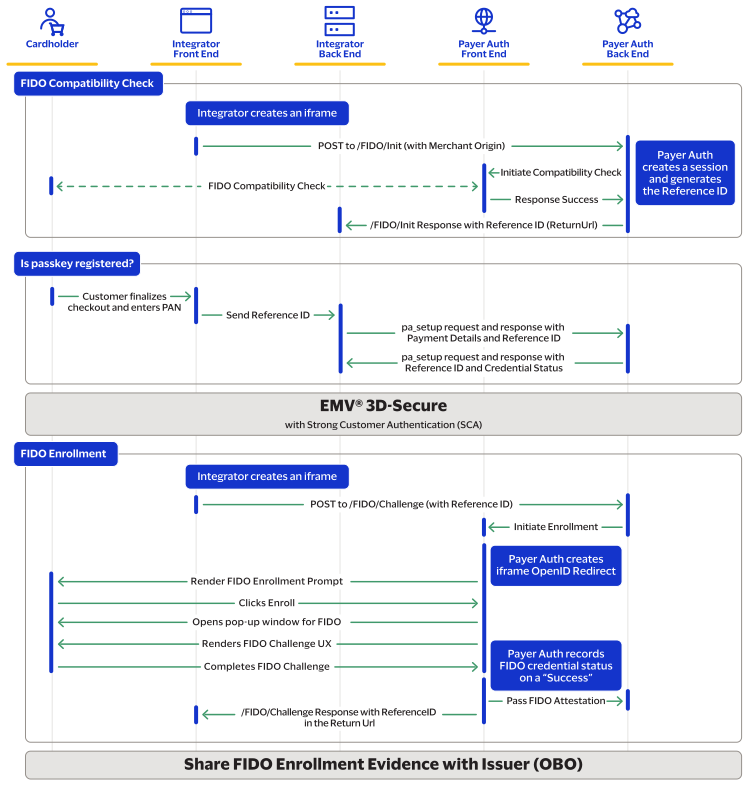
Enrollment Flow
The enrollment flow consists of 5 steps:
- Compatibility Check
- VPP Enrollment Check
- Device Data Collection
- 3DS Transaction with pa_enroll and pa_validate
- VPP Enrollment
NOTE
Both the Enrollment Flow and the Authentication Flow use the
same FIDO endpoints, the difference between the flows is not the endpoints but the
order in which the steps are taken.
The diagram shown below is the flow from end-to-end.
Integration Steps
This section outlines the steps for an enrollment flow.
Compatibility Check

Generating an iframe
An iframe functions as a “digital new tab” on the parent page. Cardinal uses iframes
for security between a third-party page and a Cardinal page for front end API calls.
With an iframe an isolation layer is created between the two sites.
Below is a simple way to generate an iframe while meeting Cardinal’s
requirements.
- Cardinal requires a JWT to be generated on the back end
- The back end will then render the JWT in the hidden JWT field
- The page loads in the browser and auto-submits the form to the iframe.
Once the form is submitted the parent page can’t read the content loaded within the
iframe.
FIDO Initialize Session code sample
  <iframe name='fidoInitializeIFrame' height="10" width="10" style="visibility: hidden;
   position: absolute; top: -1000px; left: -1000px;"> </iframe>
<form id="fidoInitializeForm" target="fidoInitializeIFrame" name="fidoInitialize"
   method="POST" action="
   https://centinelapistag.cardinalcommerce.com/V2/FIDO/Init">
   <input type="hidden" name="JWT" value="Transactional JWT generated per
      specification" />
</form>
<script>window.onload = function () {
   // Auto submit form on page load
   document.getElementById('fidoInitializeForm').submit();
   }
</script>
This is an HTML snippet that contains an iframe, a form, and a JavaScript. This
example shows a simple way to inject an iframe on page load.
- <iframe>: It's a HTML element used to embed another HTML document within the current HTML document. The given iframe is named 'fidoInitializeIFrame' and is hidden from view (with visibility set to 'hidden' and positioned off-screen).
- <form>: The form is configured to POST to the URL 'https://centinelapistag.cardinalcommerce.com/V2/FIDO/Init', and the target of this form submission is the previously mentioned iframe. This form includes a hidden input field named 'JWT' and the value is set as 'Transactional JWT generated per specification'. This suggests that a JSON Web Token should be generated and inserted into this field as part of the form submission data.
- <script>: When the window is loaded, the script automatically submits the form with id 'fidoInitializeForm'. This means that as soon as the HTML page loads, the form will be submitted automatically without any user interaction.
In summary, when this HTML page is loaded, it automatically submits a form containing
a JWT to a specified URL, and the response from that submission will be loaded into
a hidden iframe.
POST to /FIDO/Init with JWT
POST to /FIDO/Init with JWT
The /FIDO/Init request uses the same JWT request format as other Cardinal Cruise
endpoints. See our existing JWT documentation for instructions on
creating and formatting the base JWT.
When the customer lands on the merchant page, the integrator should create a hidden
iframe and call the new /FIDO/Init endpoint with the new field
merchantorigin
located in the payload.MerchantOrigin
is required to match the window.origin and must
include:- A scheme of https.
- A top-level domain
- If an integrator sends a port, it must be 443.
{
  "iss": "ApiKeyId",
  "jti": "6325c60f-d31c-4450-8184-30699ebac69c",
  "iat": 1448997865,
  "OrgUnitId": "MyOrgUnit",
  "ReturnUrl": "https://onlinestore.com/myreturn",
  "ObjectifyPayload": true,
  "Payload": {
     "MerchantOrigin": "https://onlinestore.com"
  }
}
NOTE
For field definitions refer to the API reference.
NOTE
This FIDO call only supports SHA-256 algorithm when
generating a signature for the JWT.
FIDO Init Response with JWT
Receiving a successful response will include a JWT payload with a
ReferenceId
value used for the pa_setup request during the VPP
enrollment check.{ "iss": "5f0780aeadf32541e357357a", "iat": 1715173482, "exp": 1715180682, "jti": "6325c60f-d31c-4450-8184-30699ebac69c", "aud": "739debe0-799e-43fd-8bab-e254340cd745", "Payload": { "ReferenceId": "1234-12345-1234-1234", "ErrorNumber": 0, "ErrorDescription":"Success" } }
NOTE
For field definitions refer to the API
reference
VPP Enrollment Check
Integrators use pa_setup to determine whether a user is enrolled in Visa Payment Passkey
(VPP). The pa_setup call is leveraged to determine the VPP enrollment status of the
cardholder.
pa_setup Request
Listed below is the new fields for VPP:
- consumerAuthenticationInformation.referenceId- the reference ID returned on the /FIDO/Init call.
- acquirerInformation.country-Issuers need to be aware of the acquirer's country code when the acquirer country differs from the merchant country. This field is required for a merchant acquiring in India and the European Economic Area (EEA).
- consumerAuthenticationInformation.languagePreference- Cardholder's language preference in an array format, listed in priority order. Integrators can list up to three language preferences in the array like this:["en", "gb", "jp"]. The default is "en"
- billTo.email- the cardholder's email
- orderInformation.amountDetails.totalAmount- An unformatted total transaction amount.
- orderInformation.amountDetails.currency- A 3-digit alpha ISO 4217 currency code for the sale amount.
- merchantinformation.merchant.name- The name of the merchant requesting the FIDO transaction.
{
  {
    "merchantInformation": {
        "merchantDescriptor": {
            "name": "fidomid1"
        }
    },
    "paymentInformation": {
        "card": {
            "type": "001",
            "expirationMonth": "12",
            "expirationYear": "2025",
            "number": "405106930XXXXXX2200121"
        }
    },
    "acquirerInformation": {
        "country": "US"
    },
    "consumerAuthenticationInformation": {
        "referenceId": "6a0dc054-b7e5-49c4-af61-127191594376",
        "languagePreference": [
            "en",
            "es"
        ]
    },
    "orderInformation": {
        "amountDetails": {
            "totalAmount": "12.34",
            "currency": "USD"
        },
        "billTo": {
            "email": "[email protected]"
        }
    }
}
Handling the pa_setup Response
When you receive a response that has the new FIDO sub-object with the following new
fields:
- fido.flowType-Determines whether merchants can enroll or authenticate the cardholder using FIDO. Possible values include:
- Enrollment- Move forward with a 3DS authentication to continue the enrollment flow.
- Authenticate- Move forward with FIDO authentication by running the /FIDO/Challenge request.
- Failure- Move forward with 3DS authentication without FIDO.
- fido.reasonCode- Present when failure is returned in theFlowTypefield.
- fido.reasonDescription- Present when failure is returned in theFlowTypefield.
The integrator should expect to receive a Flow Type of "Enrollment" for an enrollment
flow as shown in the sample code
below:
{
  "clientReferenceInformation": {
    "code": "1741068591217"
  },
  "consumerAuthenticationInformation": {
    "methodUrlPresent": "true",
    "fido": {
      "reasonDescription": "Success",
      "fidoFlowType": "ENROLLMENT",
      "reasonCode": "1001"
    },
    "accessToken": "eyJhbGciOiJIUzI1NiIsInR5cCI6IkpXVCJ9.eyJqdGkiOiJlMzFjMGM3Yi0zMjRmLTQ5MDAtYmNmMS01MGNkZDIzYjM0NjAiLCJpYXQiOjE3NDEwNjg1OTIsImlzcyI6IjVkZDgzYmYwMGU0MjNkMTQ5OGRjYmFjYSIsImV4cCI6MTc0MTA3MjE5MiwiT3JnVW5pdElkIjoiNjFiY2MxM2QzOTAxZTkxYWJmOWZiZWFhIiwiUmVmZXJlbmNlSWQiOiI1MWNhNjY3OS0xMmVkLTQ3YzQtODk4Mi0xYTI5ZTEwZDQ1ODcifQ._1THZ3Jgc40Vfh2pMfy0WzBpBSPEonDIdHLJ5QGraBA",
    "deviceDataCollectionUrl": "https://centinelapistag.cardinalcommerce.com/V2/Cruise/Collect",
    "referenceId": "51ca6679-12ed-47c4-8982-1a29e10d4587",
    "token": "AxizbwSTkbvtN1/knZ+B/8EBTaxtJM/ABPGhk2/+xcWFCnzAOAAALQRs"
  },
  "id": "7410685914097100103553",
  "status": "COMPLETED",
  "submitTimeUtc": "2025-03-04T06:09:52Z"
}
NOTE
If the pa_setup call returns a failure
for VPP enrollment (
flowtype
=Failure
) but
pa_setup has completed (status
=COMPLETED
),
then integrator should continue with 3DS authentication using the pa_enroll
call.Device Data Collection
The Device Data Collection process unchanged from its implementation in normal 3DS
authentication with two important caveats:
- When using DDC with FIDO, the ReferenceId in the DDC call must be the same ReferenceIdreturned by the pa_setup API in step 2.
- The endpoint returned on the PA_setup call will be a different endpoint than a normal 3DS transaction. The integrator can expect a V2/Cruise/Collect call rather than V1/Cruise/Collect.
After making the DDC call, the integrator is expected to wait for the DDC response before
proceeding to the next step. (Refer to: V2 Response for more information)
After Device Data Collection is complete merchants will then run the pa_enroll
request.
Initiate Authentication by sending pa_enroll to CyberSource
The integrator must construct and send pa_enroll to Cybersource with field values that
match what was sent on the VPP Enrollment Check, including:
- billto.email- Cardholder's email
- orderinformation.amountdetails.totalAmount- The amount being charged.
- paymentinformation.card.number- the card number
- consumerAuthenticationInformation.referenceID- This must be the same value that was passed on the pa_setup response.
- orderinformation.amountdetails.currency- the currency code.
Integrators must also include:
- consumerAuthenticationInformation.challengeCodeis sent with a value of04
- consumerAuthenticationInformation.alternateAuthenticationMethodis sent with a value of80- (Merchant is initiating a FIDO-based authentication for the purpose of registering a Visa Payment Passkey).
Here is a code sample of the PA Enrollment Call:
{
  "orderInformation": {
    "amountDetails": {
      "currency": "USD",
      "totalAmount": "10.99"
    },
    "billTo": {
      "email": "[email protected]"
    }
  },
  "paymentInformation": {
    "card": {
      "type": "001",
      "expirationMonth": "12",
      "expirationYear": "2025",
      "number": "4000000000002503"
    },
    "deviceInformation": {
      "ipAddress": "139.130.4.5",
      "httpAcceptContent": "test",
      "httpBrowserLanguage": "en_us",
      "httpBrowserJavaEnabled": false,
      "httpBrowserJavaScriptEnabled": false,
      "httpBrowserColorDepth": "24",
      "httpBrowserScreenHeight": "100000",
      "httpBrowserScreenWidth": "100000",
      "httpBrowserTimeDifference": "300",
    },
  "consumerAuthenticationInformation": {
    "strongAuthentication": {
      "authenticationIndicator": ""
       },
    "challengeCode": "04",
    "alternateAuthenticationMethod": "80"
    "deviceChannel": "BROWSER",
    "referenceId": "24cfd52c-8220-4b0f-9316-b408add003a8",
    "transactionMode": "eCommerce"
    }
  }
}
NOTE
For more information on this call go to the CyberSource Developer Site.
Receiving the pa_enroll Response and Posting to /Stepup
Before continuing with the work flow, you should expect a lookup response indicating a
challenge is required. If the transaction was not challenged, you can continue the
transaction without VPP Enrollment.
After you receive a standard Lookup Response for a 3DS challenge (PAResStatus= C), the
integrator will need to call /{Version}/Stepup in order to continue with the 3DS challenge
work flow. This requires a JWT with all the required claims as well as the custom claim
ReferenceID
which should be the same referenceId
passed
on the registration check.Below is a sample of a JWT:
{
  "iss": "ApiKeyId",
  "jti": "6325c60f-d31c-4450-8184-30699ebac69c",
  "iat": 1448997865,
  "ReferenceId": "{DX API Reference ID}"
  "OrgUnitId": "MyOrgUnit",
  "ReturnUrl": "https://onlinestore.com/myreturn",
  "ObjectifyPayload": true,
  "Payload": {
    "ACSUrl": "{pa_enroll response ACSUrl}",
    "Payload": "{pa_enoll response Payload}",
    "TransactionId": "{pa_enroll response TransactionId}"
	}
}
Handling the Validation Response
Once you get back the pa_enroll the integrator will facilitate the 3DS Issuer Challenge
session. Upon completion of the Issuer Challenge, send the pa_validate into Cybersource.
- APAResStatusof Y
- eciof 05
- CAVV is presentBelow is a sample request and response for the pa_validate call the integrator will make to CyberSourceSample Response:{ "clientReferenceInformation": { "code": "17a31b4b-1ab1-476a-bf96-e766284c1643" }, "consumerAuthenticationInformation": { "indicator": "vbv", "eciRaw": "05", "authenticationResult": "0", "strongAuthentication": { "OutageExemptionIndicator": "0" }, "authenticationStatusMsg": "Success", "eci": "05", "token": "AxijLwSTiovhUL1SFAwSABFPINsussACFnDJpJl6MVzMKYAAvCWT", "cavv": "AAIBBYNoEwAAACcKhAJkdQAAAAA=", "paresStatus": "Y", "xid": "AAIBBYNoEwAAACcKhAJkdQAAAAA=", "directoryServerTransactionId": "89e05752-3dcd-4250-9d7c-a1158f6b606f", "threeDSServerTransactionId": "7f537ae2-0daf-40c7-92d2-a92e08f85a6e", "specificationVersion": "2.2.0", "acsTransactionId": "29b974c4-5536-404a-af1b-223c5f573886" }, "id": "7278096591256651303954", "paymentInformation": { "card": { "bin": "445653", "type": "VISA" } }, "status": "AUTHENTICATION_SUCCESSFUL", "submitTimeUtc": "2024-10-01T19:07:39Z" }NOTEFor more information on this call go to the CyberSource Developer Site.At this point 3DS authentication is complete and the merchant completes the order, but the cardholder still needs to enroll in FIDO.NOTEA successful challenge is required to move forward with FIDO enrollment. If a merchantreceive a successful challenge response then the FIDO enrollment flowdoes notcontinue.cannot
VPP Enroll
NOTE
Both FIDO Enrollment and FIDO Authentication use the same
/FIDO/Challenge endpoint to accomplish each task respectively.
Integrator Generates the Iframe
Please review the code sample below for an example on how to best generate the
Challenge
iframe.
<iframe name='fidoChallengeIframe' style= "position: relative; width:327px; height:393px; border:0px;" </iframe>

<form id="fidoChallengeForm" target="fidoChallengeIframe" name="fidochallenge" method="POST" action="
https://centinelapistag.cardinalcommerce.com/V2/FIDO/Challenge">
<input type="hidden" name="JWT" value="Transactional JWT generated per specification" />

</form>
<script>window.onload = function () {
        // Auto submit form on page load
        document.getElementById('fidoChalleneForm').submit();
      }
</script>
Visa Payment Passkey Enrollment Request with JWT
Visa Payment Passkey Enrollment Request with JWT
The FIDO challenge request uses the same JWT request format as other Cardinal Cruise
endpoints. See our existing JWT documentation for instructions on creating and
formatting the base JWT. As with other specialized uses of JWTs in the API, the
challenge JWT has a Payload object that contains Enroll-specific claims, as well as two
extra claims in the main body:
ReferenceId
and
ReturnURL
. { "iss": "MyMerchant-Api-Key-Id", "jti": "My-UUID-for-this-request", "iat": 1448997865, "OrgUnitId": "M59c2745f2f3e7357b4aa516a", "ReturnUrl": "https://onlinestore.com/myreturn", "ObjectifyPayload": true, "ReferenceId": "1234-54322-12354-6454" }
NOTE
For field definitions refer to the API reference.
NOTE
This FIDO call only supports SHA-256 algorithm when
generating a signature for the JWT.
After the request has been sent to Cardinal the cardholder will be prompted with
enrollment and will fill out the form and complete the FIDO Challenge. Cardinal then
sends the FIDO challenge response.
Visa Payment Passkey Enrollment Response with JWT
Visa Payment Passkey Enrollment Response with JWT
The /FIDO/Challenge endpoint will return the response as a JWT like most Cardinal
Cruise API endpoints. This section details the
Payload
claim within
the enroll JWT, which contains information unique to this endpoint. Please refer to
the existing documentation on JWTsfor more information
on handling JWT responses.Sample Enrolled Challenge
Response:
{ "iss": "MyMerchant-Api-Key-Id", "ref": "My-UUID-for-this-request", "iat": 1448997865, "exp": 1471021692, "OrgUnitId": "59c2745f2f3e7357b4aa516a", "ObjectifyPayload": true, "Payload": { "ChallengeState": "ENROLLED", "ReferenceId": "1234-54322-12354-6454", "ErrorNumber": 0, "ErrorDescription": "Success" } }
NOTE
For field definitions refer to the API
reference
When the challenge is received the cardholder is both enrolled and authenticated with
Visa Payment Passkey.
If a failure occurs, then Cybersource recommends continuing with authorization
without Visa Payment Passkey.
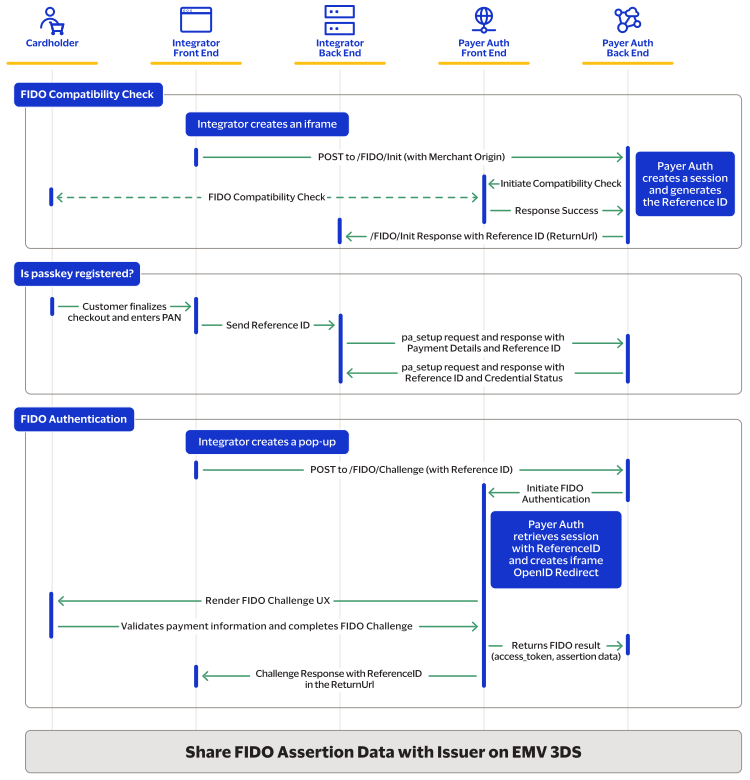
Authentication Flow
Once a user has been enrolled, VPP can be used to authenticate on future transactions.
This is done through the Authentication Flow which consists of 5 steps
- Compatibility Check
- VPP Enrollment Check
- Device Data Collection
- VPP Authenticate
- 3DS with Payer Auth Call (pa_enroll)
NOTE
Both the Enrollment Flow and the Authentication Flow use the
same FIDO endpoints, the difference between the flows is not the endpoints but the
order in which the steps are taken.
The diagram below shows the end-to-end flow for authentication.
Integration Steps
This section outlines the steps for an authentication flow.
VPP Enrollment Check
Integrators use the pa_setup call to determine whether a user is already enrolled in Visa
Payment Passkey (VPP).
pa_setup Request
Listed below is the PA_setup request with the new Payment Object and fields added for
FIDO.
{ "merchantInformation": { "merchantDescriptor": { "name": "fidomid1" } }, "paymentInformation": { "card": { "type": "001", "expirationMonth": "12", "expirationYear": "2025", "number": "405106930XXXXXX2200121" } }, "acquirerInformation": { "country": "US" }, "consumerAuthenticationInformation": { "referenceId": "6a0dc054-b7e5-49c4-af61-127191594376", "languagePreference": [ "en", "es" ] }, "orderInformation": { "amountDetails": { "totalAmount": "12.34", "currency": "USD" }, "billTo": { "email": "[email protected]" } } }
Handling the pa_setup Response
When you receive a response, you should expect for an authentication flow to receive
a FlowType of "Authentication" like shown in the samples code
below:
{ "clientReferenceInformation": { "code": "1741068591217" }, "consumerAuthenticationInformation": { "methodUrlPresent": "true", "fido": { "reasonDescription": "SUCCESS", "fidoFlowType": "AUTHENTICATION", "reasonCode": "1001" }, "accessToken": "eyJhbGciOiJIUzI1NiIsInR5cCI6IkpXVCJ9.eyJqdGkiOiJlMzFjMGM3Yi0zMjRmLTQ5MDAtYmNmMS01MGNkZDIzYjM0NjAiLCJpYXQiOjE3NDEwNjg1OTIsImlzcyI6IjVkZDgzYmYwMGU0MjNkMTQ5OGRjYmFjYSIsImV4cCI6MTc0MTA3MjE5MiwiT3JnVW5pdElkIjoiNjFiY2MxM2QzOTAxZTkxYWJmOWZiZWFhIiwiUmVmZXJlbmNlSWQiOiI1MWNhNjY3OS0xMmVkLTQ3YzQtODk4Mi0xYTI5ZTEwZDQ1ODcifQ._1THZ3Jgc40Vfh2pMfy0WzBpBSPEonDIdHLJ5QGraBA", "deviceDataCollectionUrl": "https://centinelapistag.cardinalcommerce.com/V2/Cruise/Collect", "referenceId": "51ca6679-12ed-47c4-8982-1a29e10d4587", "token": "AxizbwSTkbvtN1/knZ+B/8EBTaxtJM/ABPGhk2/+xcWFCnzAOAAALQRs" }, "id": "7410685914097100103553", "status": "COMPLETED", "submitTimeUtc": "2025-03-04T06:09:52Z" }
NOTE
If pa_setup returns a failure for
authentication, then the integrator should continue with 3DS authentication
using the pa_enroll call.
Device Data Collection
The Device Data Collection process unchanged from its implementation in normal
3DS
authentication with two important caveats:
- When using DDC with FIDO, the ReferenceId in the DDC call must be the same ReferenceIdreturned by the pa_setup API in step 2.
- The endpoint returned on the PA_setup call will be a different endpoint than a normal 3DS transaction. The integrator can expect a V2/Cruise/Collect call rather than V1/Cruise/Collect.
After making the DDC call, the integrator is expected to wait for the DDC response
before proceeding to the next step. (Refer to: V2 Response for more information)
After Device Data Collection is complete merchants will then create a FIDO
Challenge pop-up.
VPP Authenticate

NOTE
Both FIDO Enrollment and FIDO Authentication use the same
/FIDO/Challenge endpoint to accomplish each task respectively.
Integrator Generates the Challenge Pop-up
Integrators must initiate a popup to our /Challenge endpoint for the VPPS
Authentication flow.
Our MVP solution allows the integrator to test the pop-up flow in the Firefox
browser. Integrators can expect to receive a response from Cardinal similar to what
is returned on the /FIDO/Init response and the /FIDO/Challenge response for a FIDO
Enrollment Flow.
NOTE
In our subsequent iterations, we will be releasing
support for chromium browsers and Safari.
Popup Code
Sample:
For in-depth recommendations on creating a pop-up got to: Creating and Customizing Popups// Step 1 - Set a name for the popup for the form to target let popupName = "myPopupName" // Configure how the popup should look when created let settings = "popup, height=480, width=400" // Set the URL to 'about:blank' to open to an empty page let popup = window.open('about:blank', popupName, settings) // Step 2- Create a form let form = document.createElement('form'); form.method = 'POST'; form.url = "<some url>" // Set form target to the popup name form.target = popupName // Inject form into the body of the parent page document.body.appendChild(form); // Submit form form.submit(); // Step- 3 Create an interval that triggers code at a cadence, in this case it runs once every second let loop = setInterval(function () { // Code to run on each interval - Check to see if our popup is closed if (popup.closed) { // If closed, stop the interval clearInterval(loop); // Run any additional code needed in a closed scenario } }, 1000);
IMPORTANT
VPPS Authentication (/Challenge) should
be initiated in an iframe. Cardinal does not recommend
this due to popup blockers preventing the consumer from viewing what the
integrator is trying to render.
not
Popup Blockers
All major browsers have built-in popup blockers that prevent popups unless triggered
by a user action. Often, browsers notify users in the address bar when a popup is
blocked, but not all do. Integrators must ensure their popups comply with browser
restrictions by avoiding programmatic openings and only triggering them through user
actions. Since popup blocking criteria differ across browsers, cross-browser testing
is recommended to ensure popups are not blocked.
Visa Payment Passkey Authenticate Request with JWT
Visa Payment Passkey Authenticate Request with JWT
The /FIDO/Challenge endpoint uses the same JWT request format as other Cardinal Cruise
endpoints. See our existing JWT documentation for instructions on creating and
formatting the base JWT. As with other specialized uses of JWTs in the API, the
challenge JWT has two extra claims in the main body, both
ReferenceId
and ReturnURL
.Example Request:
{ "iss": "MyMerchant-Api-Key-Id", "jti": "6325c60f-d31c-4450-8184-30699ebac69c", "iat": 1448997865, "OrgUnitId": "M59c2745f2f3e7357b4aa516a", "ReturnUrl": "https://onlinestore.com/myreturn", "ObjectifyPayload": true, "ReferenceId": "1234-54322-12354-6454" }
NOTE
For field definitions refer to the API reference
NOTE
This FIDO call only supports SHA-256 algorithm when generating a
signature for the JWT.
Visa Payment Passkey Authenticate Response with JWT
Visa Payment Passkey Authenticate Response with JWT
The /FIDO/Challenge endpoint will return as a JWT. This section details the payload
claim within the response JWT, which contains information unique to this endpoint.
Please refer to the existing documentation on JWTs for more information
on handling JWT responses.
Sample Authenticated Challenge
Response:
{ "iss": "MyMerchant-Api-Key-Id", "iat": 1448997865, "esp": 1471021692, "ref": "My-UUID-for-this-request", "ObjectifyPayload": true, "OrgUnitId": "59c2745f2f3e7357b4aa516a", "Payload": { "ChallengeState": "AUTHENTICATED", "ReferenceId": "1234-54322-12354-6454", "ErrorNumber": 0, "ErrorDescription": "Success" } }
NOTE
For field definitions refer to the API
reference
The expected response for a FIDO authentication flow is a
ChallengeState
of "AUTHENTICATED." With a
ChallengeState
of "AUTHENTICATED", merchants will then create a
pa_enroll message to Cybersource with the same ReferenceId
value
used for previous steps of the FIDO transaction. If a failure occurs, then we recommend continuing with a 3DS SCA transaction without
VPP.
3DS with Payer Auth Call
The integrator must construct and send a pa_enroll call to Cybersource with field values
that are similar what was sent on the VPP Enrollment Check, including:
- billto.email- Cardholder's email
- orderinformation.amountdetails.totalAmount- The amount being charged.
- paymentinformation.card.number- the card number
- consumerAuthenticationInformation.referenceID- This must be the same value that was passed on the pa_setup response.
- orderinformation.amountdetails.currency- the currency code.
- CAUTIONChallenge Indicator was sent as 04 for the first VPP enrollment attempt, and should not be sent for a pa_enroll during the VPP authentication work flow.
{ "orderInformation": { "amountDetails": { "currency": "USD", "totalAmount": "10.99" }, "billTo": { "address1": "1 Market St", "address2": "Address 2", "administrativeArea": "CA", "country": "US", "locality": "san francisco", "firstName": "John", "lastName": "Doe", "phoneNumber": "4158880000", "email": "[email protected]", "postalCode": "94105" } }, "paymentInformation": { "card": { "type": "001", "expirationMonth": "12", "expirationYear": "2025", "number": "4000000000002503" } }, "buyerInformation": { "mobilePhone": 1245789632 }, "deviceInformation": { "ipAddress": "139.130.4.5", "httpAcceptContent": "test", "httpBrowserLanguage": "en_us", "httpBrowserJavaEnabled": false, "httpBrowserJavaScriptEnabled": false, "httpBrowserColorDepth": "24", "httpBrowserScreenHeight": "100000", "httpBrowserScreenWidth": "100000", "httpBrowserTimeDifference": "300", "userAgentBrowserValue": "GxKnLy8TFDUFxJP1t" }, "consumerAuthenticationInformation": { "strongAuthentication": { "authenticationIndicator": "" }, "deviceChannel": "BROWSER", "referenceId": "24cfd52c-8220-4b0f-9316-b408add003a8", "transactionMode": "eCommerce" }, "merchantDefinedInformation": [ { "key": "", "value": "" } ] }
Sample Response:
{ "clientReferenceInformation": { "code": "1731079375537" }, "consumerAuthenticationInformation": { "eciRaw": "05", "authenticationTransactionId": "q1t73eIyK0ReALhgjgU0", "strongAuthentication": { "OutageExemptionIndicator": "0" }, "eci": "05", "token": "AxjzbwSTjFGk+YqjWwYXABsBT34wqSvbSBcS0NmGTSTL0YsPlcQDgAAA1hhh", "cavv": "AJkBBkhgQQAAAE4gSEJydQAAAAA=", "paresStatus": "Y", "acsReferenceNumber": "Cardinal ACS", "xid": "AJkBBkhgQQAAAE4gSEJydQAAAAA=", "directoryServerTransactionId": "5f3bcb4a-53a2-4e88-a8cb-b1e5662d5069", "veresEnrolled": "Y", "threeDSServerTransactionId": "f9f4f384-819b-4e14-ac1b-a1474eaf6369", "acsOperatorID": "MerchantACS", "ecommerceIndicator": "vbv", "specificationVersion": "2.2.0", "acsTransactionId": "8a02e1cd-c215-4a0d-ad37-a741b769389c" }, "id": "7310793754576076604951", "paymentInformation": { "card": { "bin": "400000", "type": "VISA" } }, "status": "AUTHENTICATION_SUCCESSFUL", "submitTimeUtc": "2024-11-08T15:22:55Z" }
NOTE
For more information on this call go to the CyberSource Developer Site.
When the pa_enroll is sent with the DFReferenceId, Visa retrieves the results of VPP
authentication and maps the assertion data on the EMV 3DS message to share the VPP
authentication evidence with the issuer.
API Reference
This section includes all endpoints for a FIDO Enrollment or Authentication.
FIDO Init Request
{ "iss": "ApiKeyId", "jti": "6325c60f-d31c-4450-8184-30699ebac69c", "iat": 1448997865, "OrgUnitId": "MyOrgUnit", "ReturnUrl": "https://onlinestore.com/myreturn", "ObjectifyPayload": true, "Payload": { "MerchantOrigin": "https://onlinestore.com" } }
The FIDO Init request uses the same JWT request format as other Cardinal Cruise
endpoints. Refer to JWT Creation for more information.
Init Request Field Definitions
Field | Type | Required | Description |
iss | String | Y | An identifier of who is issuing the JWT. We use this value to
contain the Api Key identifier or name. |
jti | String | Y | JWT ID, which is a unique identifier for this JWT. This field
should change each time a JWT is generated. |
iat | Numeric | Y | The UNIX epoch time in seconds of when the JWT was generated.
This allows us to determine how long a JWT has been around and
whether we consider it expired or not. |
OrgUnitId | String | Y | Processor/Merchant level OrgUnitId |
ReturnURL | String | Y | The ReturnUrl is a claim used within the Cardinal Cruise API
integration that allows for the integrator to know when the
Device Data Collection and StepUpUrl interactions completed.
|
ObjectifyPayload | Boolean | Y | A boolean flag that indicates how Cardinal should consume the
Payload claim. When set to true, this tells us the Payload
claim is an object. When set to false, the Payload claim is
a stringified object. Some JWT libraries do not support passing objects as claims,
this allows those who only allow strings to use their
libraries without customization. |
Payload | Payload Object | Y | The Payload for FIDO init contains the MerchantOrigin
required field by FIDO. |
FIDO Init Response
The FIDO Init response will be in JWT format. The payload claim will have unique information regarding the /FIDO/Init endpoint described in the table below. Refer to JWT Validation for more information on handling a JWT response.{ "iss": "5f0780aeadf32541e357357a", "iat": 1715173482, "exp": 1715180682, "jti": "6325c60f-d31c-4450-8184-30699ebac69c", "aud": "739debe0-799e-43fd-8bab-e254340cd745", "Payload": { "ReferenceId": "1234-12345-1234-1234", "ErrorNumber": 0, "ErrorDescription":"Success" } }
FIDO Init Response Payload
Field | Type | Required | Description |
ReferenceId | String | Y | The ID returned from Cardinal during the FIDO Init
request. |
ErrorNumber | Numeric | Y | An application error number. A non-zero value represents the
error encountered while attempting to process the message
request. |
ErrorDescription | String | Y | Application error description for the associated error
number. Possible Values:
|
Challenge Request
{
   "iss": "MyMerchant-Api-Key-Id",
   "jti": "My-UUID-for-this-request",
   "iat": 1448997865,
   "OrgUnitId": "M59c2745f2f3e7357b4aa516a",
   "ReturnUrl": "https://onlinestore.com/myreturn",
   "ObjectifyPayload": true,
   "ReferenceId": "1234-54322-12354-6454"
 }
The FIDO challenge request uses the same JWT request format as other Cardinal Cruise
endpoints. Refer to JWT Creation for more information.
Field | Type | Required | Description |
|---|---|---|---|
iss | String | Y | An identifier of who is issuing the JWT. We use this value to
contain the API Key identifier or name. |
jti | String | N | JWT ID, which is a unique identifier for this JWT. This field
should change each time a JWT is generated. |
iat | Numeric | Y | The UNIX epoch time in seconds of when the JWT was generated.
This allows us to determine how long a JWT has been around and
whether we consider it expired or not. |
OrgUnitId | String | Y | Processor/Merchant level OrgUnitId |
ReturnURL | String | Y | The ReturnUrl is a claim used within the Cardinal Cruise API
integration that allows for the integrator to know when the Device
Data Collection and StepUpUrl interactions completed. |
ObjectifyPayload | Boolean | Y | A boolean flag that indicates how Cardinal should consume the
Payload claim. When set to true, this tells us the Payload claim
is an object. When set to false, the Payload claim is a
stringified object. Some JWT libraries do not support passing objects as claims, this
allows those who only allow strings to use their libraries
without customization. |
ReferenceId | String | Y | The ID returned from the VPP Enrollment Check. |
Challenge Response
{
  "iss": "MyMerchant-Api-Key-Id",
  "ref": "My-UUID-for-this-request",
  "iat": 1448997865,
  "exp": 1471021692,
  "OrgUnitId": "59c2745f2f3e7357b4aa516a",
  "ObjectifyPayload": true,
  "Payload": {
     "ChallengeState": "ENROLLED",
     "ReferenceId": "1234-54322-12354-6454",
     "ErrorNumber": 0,
     "ErrorDescription": "Success"
    }
}
The challenge response will be in JWT format. The payload claim will have unique
information regarding the /FIDO/Challenge endpoint described in the table below. Refer
to JWT Validation for more information on handling a JWT
response.
Field | Type | Required | Description |
|---|---|---|---|
ChallengeState | String | Y | Indicates whether your transaction is:
|
ReferenceId | String | Y | The ID returned back during the VPP Enrollment Check. |
ErrorNumber | Numeric | Y | Application error number; a non-zero value represents the error
encountered while attempting the process the message request. See
ErrorDescription below for possible values. |
ErrorDescription | String | Y | Application error description for the associated error number Possible Values:
|
Code Samples for pa_setup
SCMP Request
{
    "merchantInformation": {
        "merchantDescriptor": {
            "name": "fidomid1"
        }
    },
    "orderInformation": {
        "amountDetails": {
            "currency": "USD",
            "totalAmount": "121"
        }
    },
    "billTo": {
        "email": "[email protected]"
    },
    "acquirerInformation": {
        "country": "US"
    },
    "consumerAuthenticationInformation":{
    	"referenceId": "abcfjkkku8egd-ajdh",
    	"languagePreference":["en", "gb", "jp"]
    },
    "paymentInformation": {
        "card": {
            "number": "4000000000001000",
            "expirationMonth": "12",
            "expirationYear": "2025",
            "type": "001"
        }
    }
}
SCMP
Response
{
    {
  "clientReferenceInformation": {
    "code": "1741068591217"
  },
  "consumerAuthenticationInformation": {
    "methodUrlPresent": "true",
    "fido": {
      "reasonDescription": "Error",
      "fidoFlowType": "ENROLLMENT",
      "reasonCode": "1001"
    },
    "accessToken": "eyJhbGciOiJIUzI1NiIsInR5cCI6IkpXVCJ9.eyJqdGkiOiJlMzFjMGM3Yi0zMjRmLTQ5MDAtYmNmMS01MGNkZDIzYjM0NjAiLCJpYXQiOjE3NDEwNjg1OTIsImlzcyI6IjVkZDgzYmYwMGU0MjNkMTQ5OGRjYmFjYSIsImV4cCI6MTc0MTA3MjE5MiwiT3JnVW5pdElkIjoiNjFiY2MxM2QzOTAxZTkxYWJmOWZiZWFhIiwiUmVmZXJlbmNlSWQiOiI1MWNhNjY3OS0xMmVkLTQ3YzQtODk4Mi0xYTI5ZTEwZDQ1ODcifQ._1THZ3Jgc40Vfh2pMfy0WzBpBSPEonDIdHLJ5QGraBA",
    "deviceDataCollectionUrl": "https://centinelapistag.cardinalcommerce.com/V2/Cruise/Collect",
    "referenceId": "51ca6679-12ed-47c4-8982-1a29e10d4587",
    "token": "AxizbwSTkbvtN1/knZ+B/8EBTaxtJM/ABPGhk2/+xcWFCnzAOAAALQRs"
  },
  "id": "7410685914097100103553",
  "status": "COMPLETED",
  "submitTimeUtc": "2025-03-04T06:09:52Z"
}
SOAP Request
<soapenv:Envelope xmlns:soapenv="http://schemas.xmlsoap.org/soap/envelope/" xmlns:wsse="http://docs.oasis-open.org/wss/2004/01/oasis-200401-wss-wssecurity-secext-1.0.xsd" xmlns:soap="http://schemas.xmlsoap.org/soap/envelope/" xmlns:urn="urn:schemas-cybersource-com:transaction-data-1.227">
    <soapenv:Header>
        <wsse:Security>
            <wsse:UsernameToken>
                <wsse:Username Type="#PasswordText">patest4</wsse:Username>
                <wsse:Password>u6kWTFE04j0hvDAAblT2ITjheBIsWhuj9VDzc84w+ht4oZMyc5eQeelUM8Y6cjUkkxANrZ1GqQjFE3UXN1G3CzKYktUYKAcOvVC5i/u7nIGqmGZIdd1b6w/pWqPAOzs0bCb97o/BQuN7dqG7+H0XOfDeXIlK0JBIqsPNjO6wai+z5sK4YlpfTGRo9U/WOGXNr34asVYk9WF/K6E6Lwf/NykT19JLWV7DZzfhVgqbnCMDfMTVAhNlSAmMkzpW+JixX245koFYmks2so39t3IkQVE8dOS/Ni//4CRzH8hFuInuRCTSY0y59hZ5uq5E3v0uUN6IZDZR+Oyp1XB+zNRgvw==</wsse:Password>
            </wsse:UsernameToken>
        </wsse:Security>
    </soapenv:Header>
    <soapenv:Body>
        <urn:requestMessage xmlns="urn:schemas-cybersource-com:transaction-data-1.227">
            <urn:merchantID>patest4</urn:merchantID>
            <urn:merchantReferenceCode>scoreTest</urn:merchantReferenceCode>
            <urn:billTo>
                <urn:email>[email protected]</urn:email>
            </urn:billTo>
            <urn:purchaseTotals>
                <urn:currency>USD</urn:currency>
                <urn:grandTotalAmount>1001</urn:grandTotalAmount>
            </urn:purchaseTotals>
            <urn:card>
                <urn:accountNumber>4111111111111111</urn:accountNumber>
                <urn:expirationMonth>12</urn:expirationMonth>
                <urn:expirationYear>2025</urn:expirationYear>
                <urn:cardType>001</urn:cardType>
            </urn:card>
            <urn:payerAuthSetupService run="true">
                <urn:referenceID>12345-1234-123145-1423</urn:referenceID>
                <urn:merchantName>patest4</urn:merchantName>
                <urn:acquirerCountry>US</urn:acquirerCountry>
                <urn:languagePreference id="0">US</urn:languagePreference>
                <urn:languagePreference id="1">IN</urn:languagePreference>
                <urn:languagePreference id="2">au</urn:languagePreference>
            </urn:payerAuthSetupService>
        </urn:requestMessage>
    </soapenv:Body>
</soapenv:Envelope>
SOAP Response
<soap:Envelope xmlns:soap="http://schemas.xmlsoap.org/soap/envelope/">
    <soap:Header>
        <wsse:Security xmlns:wsse="http://docs.oasis-open.org/wss/2004/01/oasis-200401-wss-wssecurity-secext-1.0.xsd" xmlns:soapenv="http://schemas.xmlsoap.org/soap/envelope/" xmlns:wsu="http://docs.oasis-open.org/wss/2004/01/oasis-200401-wss-wssecurity-utility-1.0.xsd">
            <wsu:Timestamp wsu:Id="TS-a4bf6296-758c-4830-82f9-63fa56d36cbf">
                <wsu:Created>2025-04-03T16:00:54.983Z</wsu:Created>
            </wsu:Timestamp>
        </wsse:Security>
    </soap:Header>
    <soap:Body>
        <c:replyMessage xmlns:c="urn:schemas-cybersource-com:transaction-data-1.227">
            <c:merchantReferenceCode>scoreTest</c:merchantReferenceCode>
            <c:requestID>7436960542587000451316</c:requestID>
            <c:decision>ACCEPT</c:decision>
            <c:reasonCode>100</c:reasonCode>
            <c:requestToken>AxjzbwSTkyiPcsb2e/D0/8EBTaxorHo+kEcOCJ8sMm3/2LiwoU+YCYAAqCu6</c:requestToken>
            <c:payerAuthSetupReply>
                <c:reasonCode>100</c:reasonCode>
                <c:referenceID>51ca6679-12ed-47c4-8982-1a29e10d4587</c:referenceID>
                <c:deviceDataCollectionURL>https://centinelapistag.cardinalcommerce.com/V2/Cruise/Collect</c:deviceDataCollectionURL>
                <c:accessToken>eyJhbGciOiJIUzI1NiIsInR5cCI6IkpXVCJ9.eyJqdGkiOiJhZTEwMzJkMS05YTdkLTRjYzAtODUzMC05ZmFmMGIzZTNkZWMiLCJpYXQiOjE3NDM2OTYwNTQsImlzcyI6IjVkZDgzYmYwMGU0MjNkMTQ5OGRjYmFjYSIsImV4cCI6MTc0MzY5OTY1NCwiT3JnVW5pdElkIjoiNjFiY2MxM2QzOTAxZTkxYWJmOWZiZWFhIiwiUmVmZXJlbmNlSWQiOiI1MWNhNjY3OS0xMmVkLTQ3YzQtODk4Mi0xYTI5ZTEwZDQ1ODcifQ.1Xjr7JO6KXYrpthJj4qqm089bGyT-8CWSDKbr_nmjb0</c:accessToken>
                <c:fidoFlowType>ENROLLMENT</c:fidoFlowType>
                <c:fidoReasonCode>1001</c:fidoReasonCode>
                <c:fidoReasonDescription>Error</c:fidoReasonDescription>
                <c:methodUrlPresent>true</c:methodUrlPresent>
            </c:payerAuthSetupReply>
            <c:reserved>
                <ics_message xmlns="urn:schemas-cybersource-com:transaction-data:ics">
                    <pa_setup_rmsg>Setup complete.</pa_setup_rmsg>
                    <ics_return_code>1000000</ics_return_code>
                    <pa_setup_pa_fido_flow_type>ENROLLMENT</pa_setup_pa_fido_flow_type>
                    <ics_rmsg>Request was processed successfully.</ics_rmsg>
                    <pa_setup_pa_reference_id>51ca6679-12ed-47c4-8982-1a29e10d4587</pa_setup_pa_reference_id>
                    <ics_rcode>1</ics_rcode>
                    <pa_setup.reason_code>100</pa_setup.reason_code>
                    <ics_rflag>SOK</ics_rflag>
                    <pa_setup_pa_fido_reason_description>Error</pa_setup_pa_fido_reason_description>
                    <pa_setup_pa_method_url_present>true</pa_setup_pa_method_url_present>
                    <pa_setup_pa_device_data_collection_url>https://centinelapistag.cardinalcommerce.com/V2/Cruise/Collect</pa_setup_pa_device_data_collection_url>
                    <pa_setup_rcode>1</pa_setup_rcode>
                    <pa_setup_rflag>SOK</pa_setup_rflag>
                    <merchant_ref_number>scoreTest</merchant_ref_number>
                    <pa_setup_pa_access_token>eyJhbGciOiJIUzI1NiIsInR5cCI6IkpXVCJ9.eyJqdGkiOiJhZTEwMzJkMS05YTdkLTRjYzAtODUzMC05ZmFmMGIzZTNkZWMiLCJpYXQiOjE3NDM2OTYwNTQsImlzcyI6IjVkZDgzYmYwMGU0MjNkMTQ5OGRjYmFjYSIsImV4cCI6MTc0MzY5OTY1NCwiT3JnVW5pdElkIjoiNjFiY2MxM2QzOTAxZTkxYWJmOWZiZWFhIiwiUmVmZXJlbmNlSWQiOiI1MWNhNjY3OS0xMmVkLTQ3YzQtODk4Mi0xYTI5ZTEwZDQ1ODcifQ.1Xjr7JO6KXYrpthJj4qqm089bGyT-8CWSDKbr_nmjb0</pa_setup_pa_access_token>
                    <pa_setup_return_code>1865000</pa_setup_return_code>
                    <pa_setup_pa_fido_reason_code>1001</pa_setup_pa_fido_reason_code>
                    <ics_decision_reason_code>100</ics_decision_reason_code>
                    <request_id>7436960542587000451316</request_id>
                    <request_token>AxjzbwSTkyiPcsb2e/D0/8EBTaxorHo+kEcOCJ8sMm3/2LiwoU+YCYAAqCu6</request_token>
                </ics_message>
            </c:reserved>
        </c:replyMessage>
    </soap:Body>
</soap:Envelope>
Errors for Init and Challenge
Number | Description |
|---|---|
9100 | Browser Compatibility Error |
9000 | Generic Error |
Frequently Asked Questions for VPP
- Can VPP Enrollment be performed after a frictionless authentication?
- No, A successful 3DS challenge is required for VPP enrollment. In certain exceptional cases, an issuer may not present the 3DS challenge, making the authentication attempt ineligible for enrollment. In that particular instance we recommend that merchants continue attempting the VPP based authentication for subsequent transactions and wait for a successful 3DS challenge completion before attempting for VPP enrollment. After a successful enrollment, all subsequent authentication requests from the same device will be eligible for VPP authentication.
- Can VPP Enrollment be performed if 3DS challenge is attempted but failed?
- No, Only a successful 3DS challenge with the following responses for pa_validate is eligible for VPP enrollment meaning the following are returned, aPAResStatusofY, aneciof05, and a CAVV is present. If pa_validate contains aPAResStatusofUorN, the 3DS authentication is not successful and the authentication attempt is not eligible for VPP enrollment.
- Is there any change in pa_enroll payload?
- Yes, all pa_enroll calls should contain the new required field:payerAuthEnrollService_alternateAuthenticationMethodwith a value of80. This indicates the merchant’s intent for VPP alternate authentication. In addition to the above fields, if th pa_setup response has indicated theflowtypeisEnrollmentthen the pa_enroll must include aChallenge Indicatorof04. This requests the issuer to provide a 3DS challenge for the attempt to make it eligible for VPP enrollment.
- How to obtain the Production Credentials.
- Integrator can contact their Visa POC for Prod Credentials after validating the integration flow in staging.
JWTs
Centinel API uses JWT's as a method of passing signed data from one party to another.
We're actually using JWS (JSON Web Signature) which is a more specific variant of the
JWT spec, however for simplicity the rest of this article will reference it as a
JWT.
JWT Anatomy
A jwt is comprised of 3 sections of url base64 encoded strings of data separated by a
period. The first 2 sections are JSON objects while the last section is a digital
signature that has been url base64 encoded. The sections are as such:
- header- A small JSON object that specifies what type of algorithm was used to generate the digital signature. This section is denoted in the below example in red.
- payload- A JSON object that contains the data being sent from one party to another. This is where all request data the merchant sends to Cardinal lives, and vise versa. This section is denoted in the below example in green.
- signature- A url base64 encoded hash value of the header and payload. This is used to verify the contents of the jwt have not been tampered with. Signatures are generated using a shared secret value so only the creator and consumer have the ability to create the signature. As long as the shared secret stays a secret between the 2 parties no one should be able to spoof the signature. Signatures are verified by the consumer recreating the hash value and checking that it matches to the one attached to the jwt. This section is denoted below in blue.
Code Samples
/Collect with JWT
{
  "jti": "6325c60f-d31c-4450-8184-30699ebac69c",
  "iat": 1448997865,
  "iss": "5d5f23deafa80d19d099c674",
  "OrgUnitId": "59c2745f2f3e7357b4aa516a",
  "ReturnUrl": "<http://merchanturl.com/cart/collect-returnurl">,
}
/Step Up with JWT
{
  "jti": "6325c60f-d31c-4450-8184-30699ebac69c",
  "iat": 1448997865,
  "iss": "5d5f23deafa80d19d099c674",
  "OrgUnitId": "59c2745f2f3e7357b4aa516a",
  "ReturnUrl": "<http://merchanturl.com/cart/collect-returnurl">,
“ReferenceId” : “1234-54322-12354-6454”,
  "Payload": {
    "ACSUrl": "{pa_enroll Response ACSUrl}",
	"Payload": "{pa_enroll Response Payload}",
	"TransactionId": "{pa_enroll Response TransactionId}"
	},
  "ObjectifyPayload": true
}
NOTE
For VPP an additional custom claim called ‘ReferenceId’
is required in the JWT for the 3DS Step-up. Integrator needs to create a custom
JWT for step-up and use the same JWT sent in pa_enroll
response.
cannot