On This Page
Create or Submit a REST—API Response MLE Key
Before you can enable your system to support MLE, you must create or upload an
REST—API response MLE
certificate. After creating or uploading the
certificate, you can extract the certificate's key to begin enabling MLE.Follow these steps to create or submit an API Response MLE certificate using the
Business Center
:- Log in to theBusiness Center:
- On the left navigation panel, choose
 Payment Configuration > Key Management.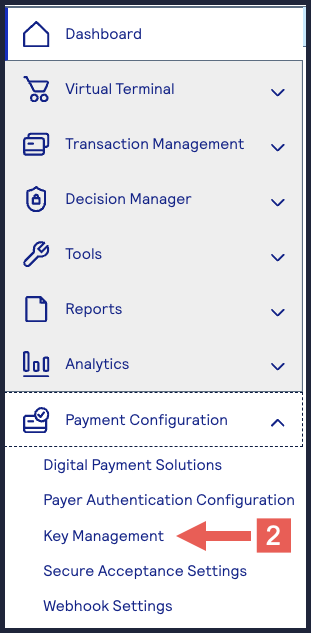
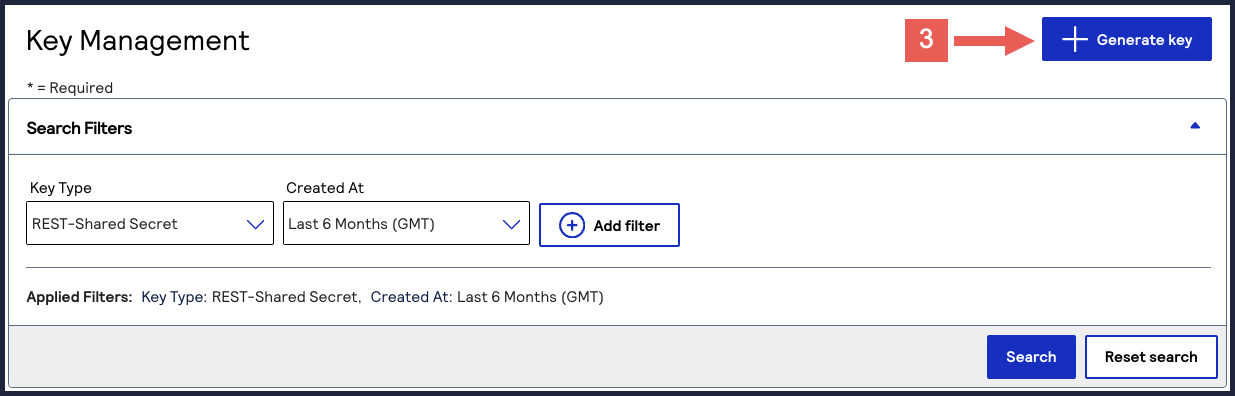
- Click+ Generatekey.
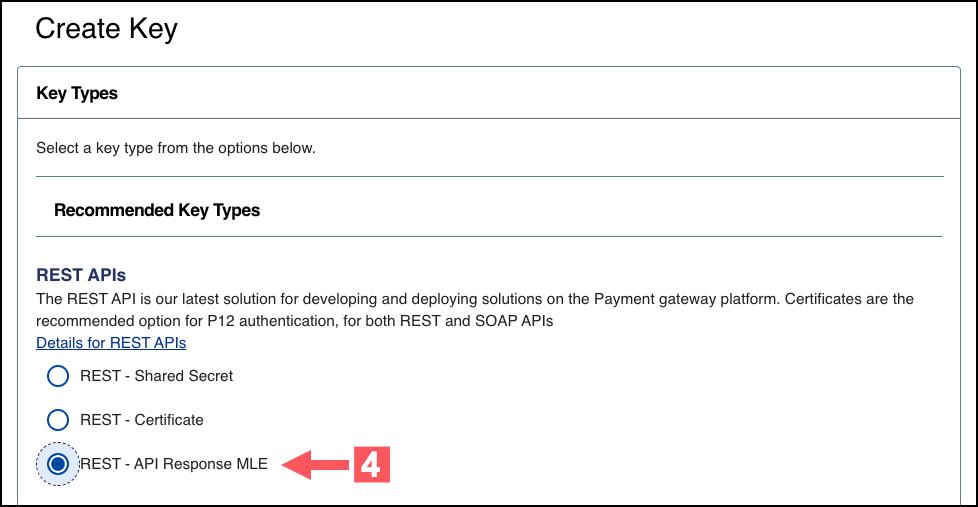
- Under REST APIs, chooseREST – API Response MLE, and then clickGenerate key.
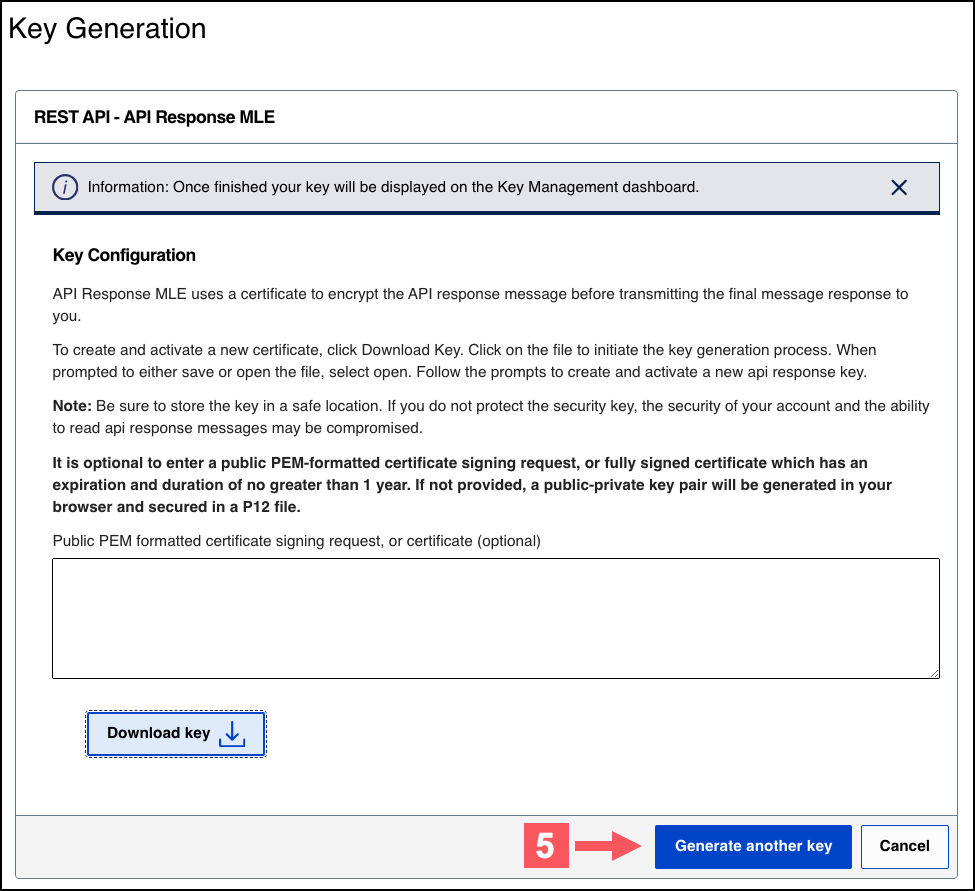
- Choose one of these options to download your key:
- To create a new API response MLE certificate, clickDownload key
 .
. - To upload your own certificate, enter your public PEM-formatted certificate in the text box, then clickDownload key
. The
.pemfile downloads to your desktop. If prompted by your system, approve the location for where the file downloads.
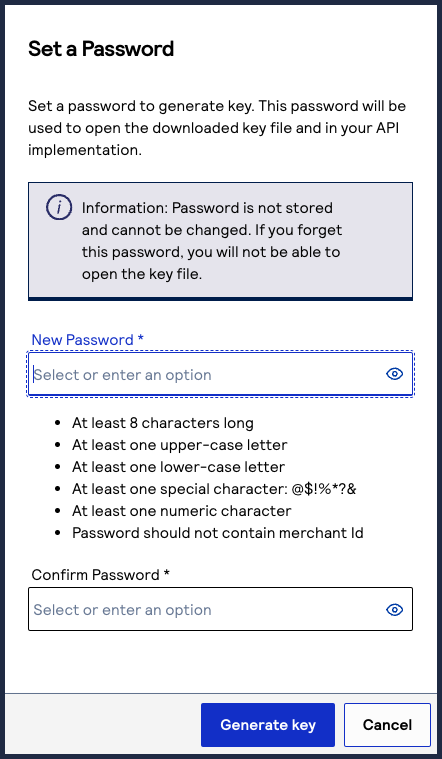
- If you are creating a certificate, the Set a Password window appears. Create a password for the certificate by entering the password into theNew PasswordandConfirm Passwordfields, and then clickGenerate key.The.p12file downloads to your desktop. If prompted by your system, approve the location for where the key downloads.
 You can create or upload another key by clickingGenerate another key. To view all of your created keys, use the Key Management page.IMPORTANTSecurely store the.p12file and password in your system. These credentials are required to implement certain products and you must be able to access them.
 - ClickCancel.The Key Management page appears.
- Click the Key Type filter and chooseREST-API Response MLE.
- Click the Expires At filter and chooseAll Dates.
- ClickSearch.
- Find the REST–API Response key that you created in the Search Results table and save its key ID.The key ID is needed to test and configure your system to use MLE.

- Test Your REST–API Response MLE Key
- To test your REST–API Response key, see Test Your REST—API Response MLE Key.