On This Page
Remove a Meta Key from Select Merchants
Follow these steps to remove a meta key from specific transacting MIDs that it is
assigned to.
IMPORTANT
Removing a meta key does not delete the key. To delete a meta
key, see Delete a Meta Key.
- On the left navigation panel of theBusiness Center, choose
 Payment Configuration > Key Management.
 - Find the key that you want to remove by searching and filtering.
- In the Edit Key column, click the
 edit
button.The Edit Key page appears.
edit
button.The Edit Key page appears. - Verify that theMeta Keycheck box is checked.
- Verify thatCustom MID selectionis selected.
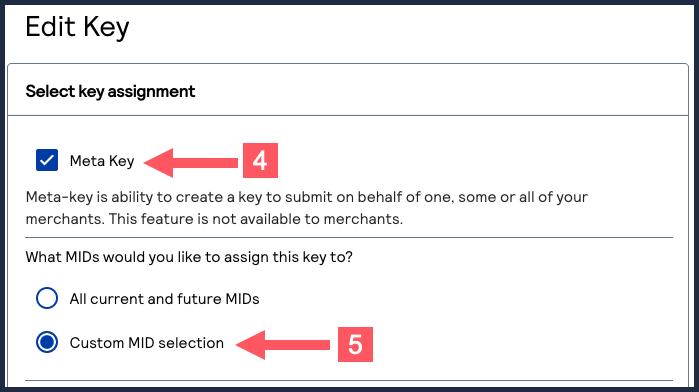
- Click+ Add custom merchant ids.
- Select the MIDs that you want to remove the meta key from.To filter MIDs, click+ Add filter, select a filter, and clickSearch. ClickSave.
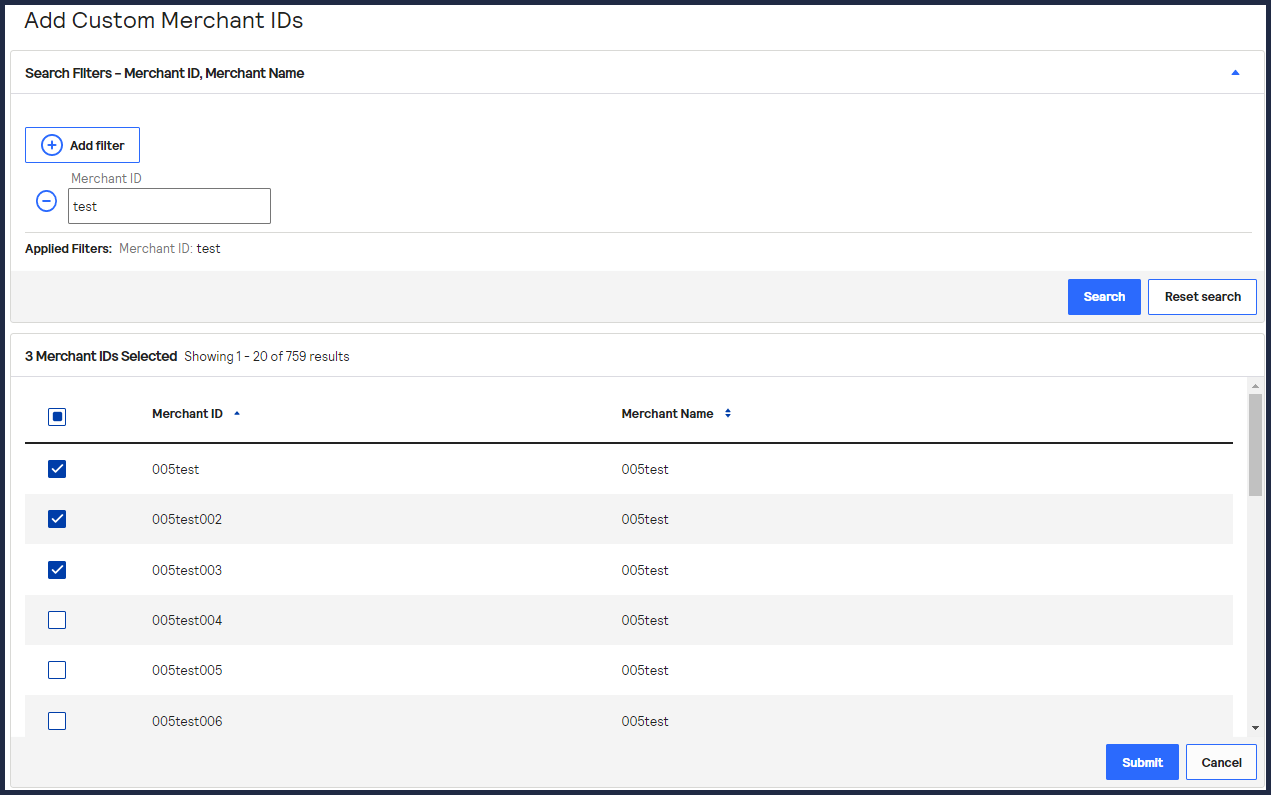
- ClickSubmitwhen done.The Key Generation page appears.IMPORTANTAn error message displays if you choose a merchant account that has a meta key already assigned to it. Before you can assign a new meta key, remove the currently assigned meta key from the merchant account. For more information, see Remove a Meta Key from all Merchants and Remove a Meta Key from Select Merchants.