On This Page
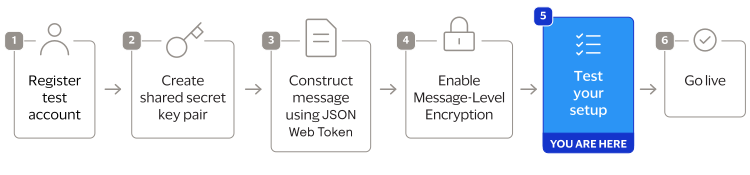
Test Your Setup
Cybersource
recommends that you test and verify
that your payment system can securely send and receive REST API messages before
transitioning to a production account. Use the test examples provided in this section to
test your set up. You should also test any additional API requests that you will use in
your live environment. Test Your REST–API Response MLE Key
Follow these steps to verify that your API response MLE key is working. If you
have not already created or submitted an API response MLE certificate, see the Create or
Submit a REST—API Response MLE Key section in Enable Message-Level Encryption.
- Go to the REST API Reference page in theCybersourceDeveloper Center:
- On the left navigation panel, choose an API that supports MLE. For testing purposes, you can chooseIntelligent Commerce > Intelligent Commerce Product > Enroll a Card.MLE support is indicated byRequest MLEandResponse MLEat the top of the screen.

- Choose theMLE Configurationtab.
- In the Message Level Encryption Credentials section, enter your API response MLE key credentials:

- ClickUpdate Credentials.
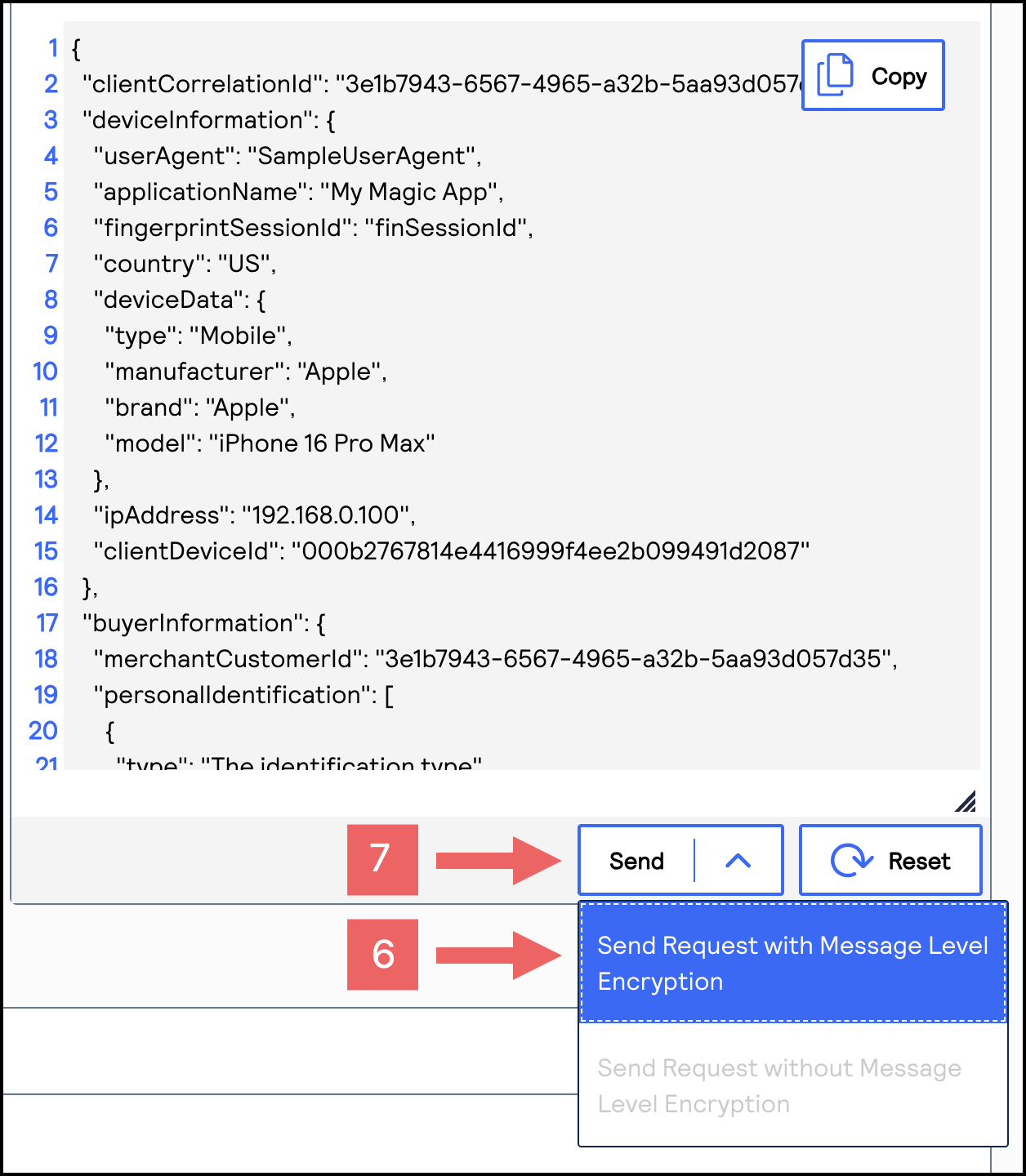
- From theSenddrop-down menu, chooseSend Request with Message Level Encryption.
- ClickSend.
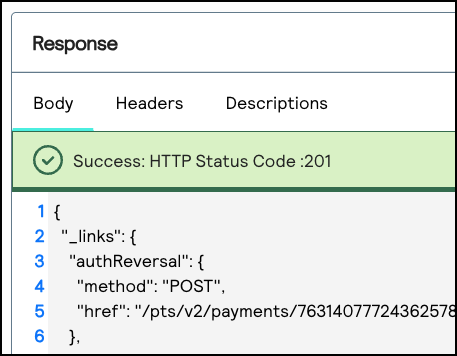
- If aSuccess: HTTP Status Code: 201message displays in the Response section, your REST—API response MLE key is verified as properly configured.